Service Areas Module
Use this module to add/edit/delete Service Areas and their respective landing pages.
What Can I Add?
Service Areas
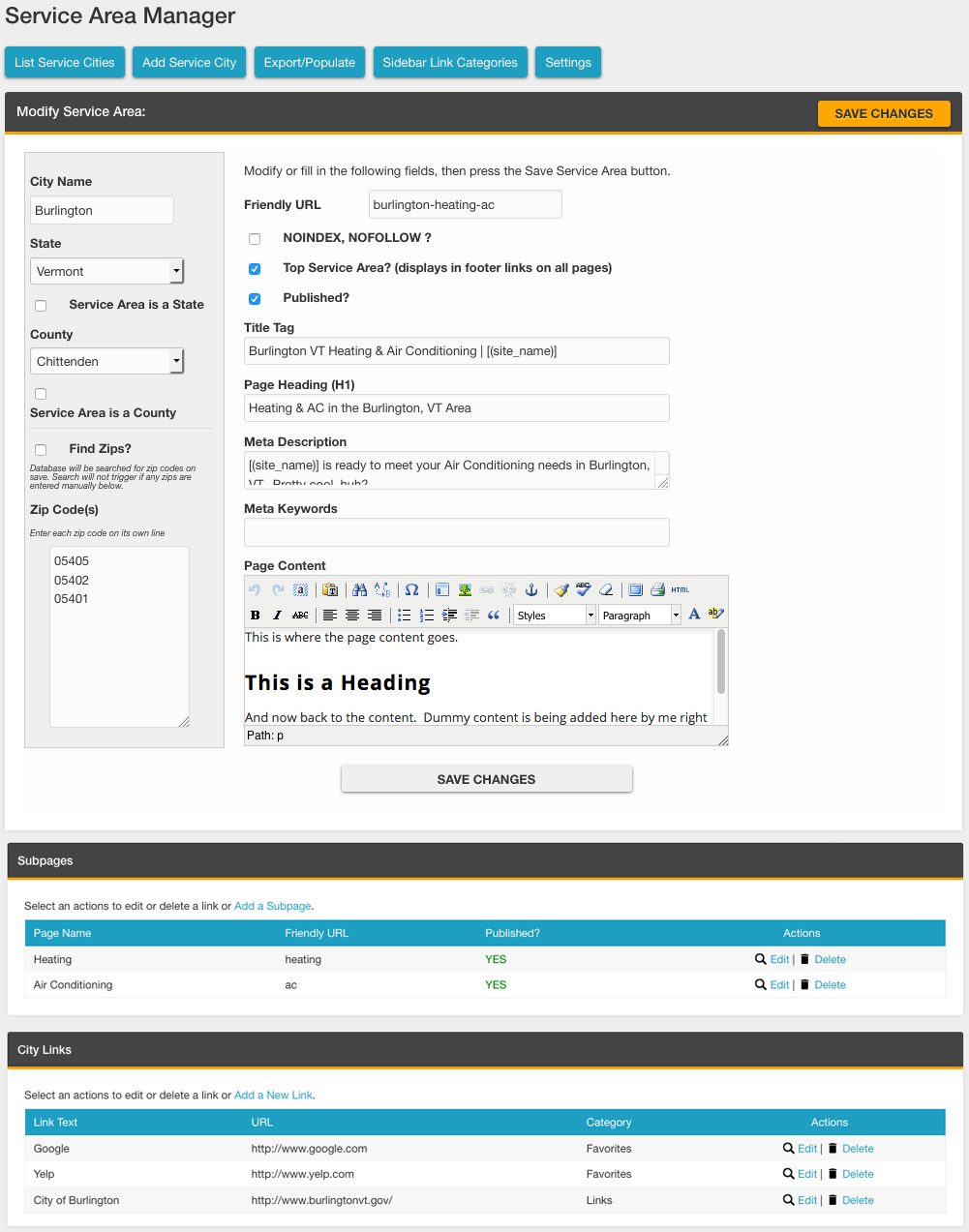
Click the “Add Service Area” button to add a new service area.
The following information is required for each service area (listed in the gray sidebar area on the left):
- City Name
- State (Check box if the service area is an entire state.)
- County (Check box if the service area is an entire county.)
- Check box to find all the zip codes in the zip code database for the particular town, or enter them manually using the next option:
- Zip Codes (enter each zip code on a separate line)
The following information is needed if the service area has its own landing page (main content area):
- Friendly URL. This should follow the format provided by SEO (which is typically unique for each site).
- Checkbox to add NOINDEX, NOFOLLOW metas (optional, and typically avoided here).
- Checkbox to add to Top Service Area list: This will include the city in the list of service areas in the service area block (if applicable).
- Checkbox to Publish Page
- Title Tag: The meta title for the page. Should be provided/approved by SEO.
- Page Heading: The main H1 on the page. This should be provided/approved by SEO.
- Meta Description: Should be provided/approved by SEO.
- Meta Keywords: This area is rarely used anymore, but it should be provided/approved by SEO if it is being used.
- Page Content: Enter in all of the content for the page here. The content will be split into top and main content areas automatically (described further below).
The following features are available, but they are not commonly used. Typically you will only see these in use on older iMarket sites.
- Subpages
- City Links
Edit/Delete Service Areas
Edit an existing Service Area
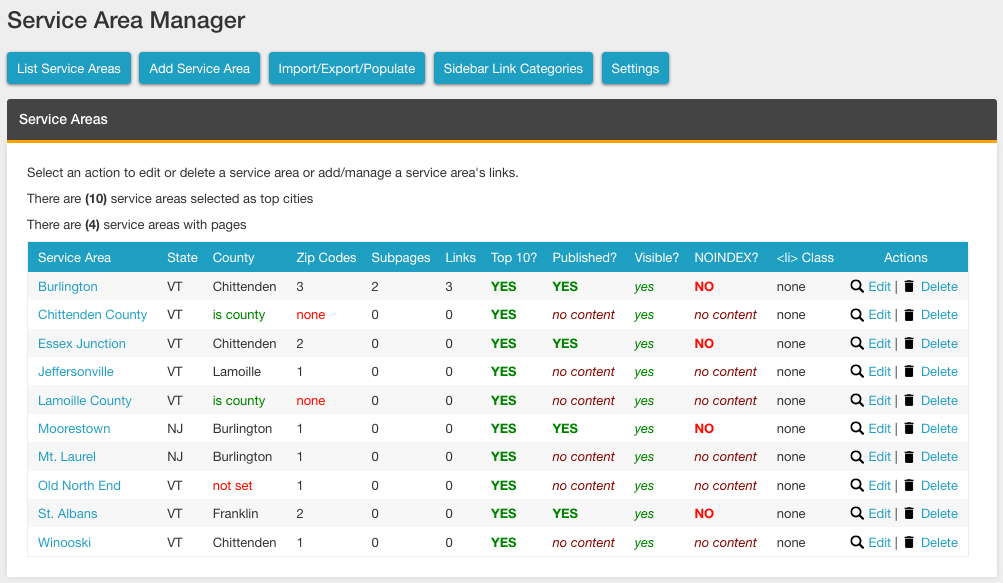
- Go to the “List Service Areas” tab in the Service Area module.
- Click the EDIT button adjacent to the city you wish to edit.
- Make the desired edits.
- Save.
Delete an existing Service Area
- Go to the “List Service Areas” tab in the Service Area module.
- Click the DELETE button adjacent to the city you wish to delete.
Export/Populate Tab
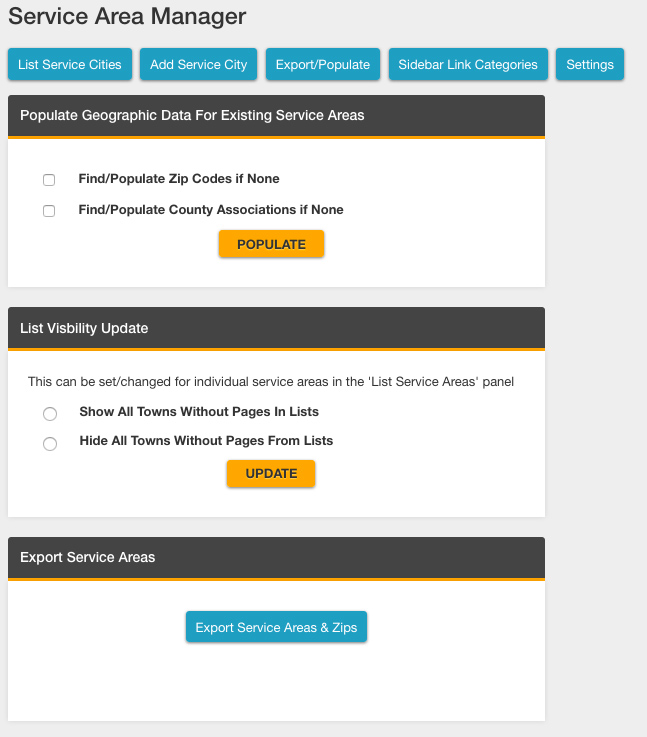
Export/Populate: The export/populate tab allows you to automatically populate zip codes or counties if there are none assigned. This should be used with caution: The client may not service all zip codes in a particular city.
List Visibility Update: Use this section to include all service areas without pages in the service area block or use it to hide them. Again, this should be used with caution—Development may need to tweak the structure of the service area list block for this to work correctly.
Export Service Areas: Use this button to export a spreadsheet with all the service area towns and their associated zips.
Settings Tab
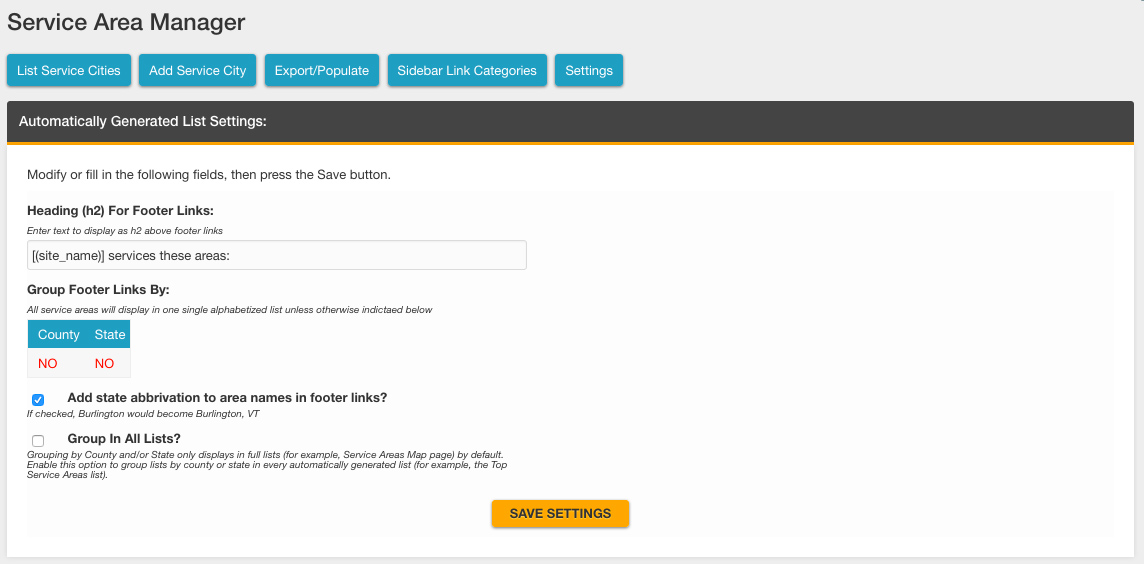
h2 for Footer Links: Use this field to alter the h2 that appears above the Service Area List block. This should be used with caution as there may be special styling in place that will be impacted by the length of the content entered here. When in doubt, open a ticket to Development.
Group Footer Links By: Clicking the red “no” text will change the option to “yes” (or vice versa), which will alter how the service area list items are organized on the service area map page. This should be used with caution—Development may need to tweak the structure of the service area list block for this to work correctly.
Add state abbreviation…: Checking this box will display the two letter state abbreviation along with the city name in the service area list block. This should be used with caution as there may be special styling in place that will be impacted by the length of the list item content. When in doubt, open a ticket to Development.
Group in All Lists: By default, the “Group Footer Links By” option above only impacts full service area lists (in other words, the Service Areas Map page list). Checking this option will enable your above setting across all automatically generated lists (for example, the Service Area List Block).
Custom Footer HTML: This can be used to add additional HTML to the Service Area List. Only Development should use this field.
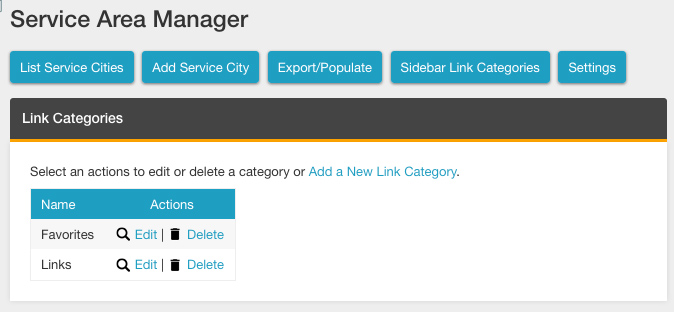
Sidebar Link Categories
On older iMarket sites, this section was used to add blocks of content to the sidebar of Service Area Landing pages. Once a new category is added, it will display as an option when editing the City Links of a Service Area Landing page.
Sample Output
The content entered into the module will display on the Service Area Landing page in a similar fashion to standard content pages. Code is included on all iMarket sites that will split the page content into the top and main content containers. The code uses the first h2 in the content to determine where the split will occur (see the image below for an example). If Recommend Me is enabled, the reviews for the city being viewed will display in between the top and main content blocks.
The sidebar may include promotions, testimonials or other blocks that also appear on the main content pages (this will be determined by the development and design of the website at the time of site build). An additional sidebar or full-width block will be included to display the list of zip codes serviced in the city being viewed. If blog posts are tagged with the city name, they will also appear in a sidebar or full-width block.
On older iMarket sites, there may be additional sidebar blocks that display city links or subpages assigned to the city being viewed.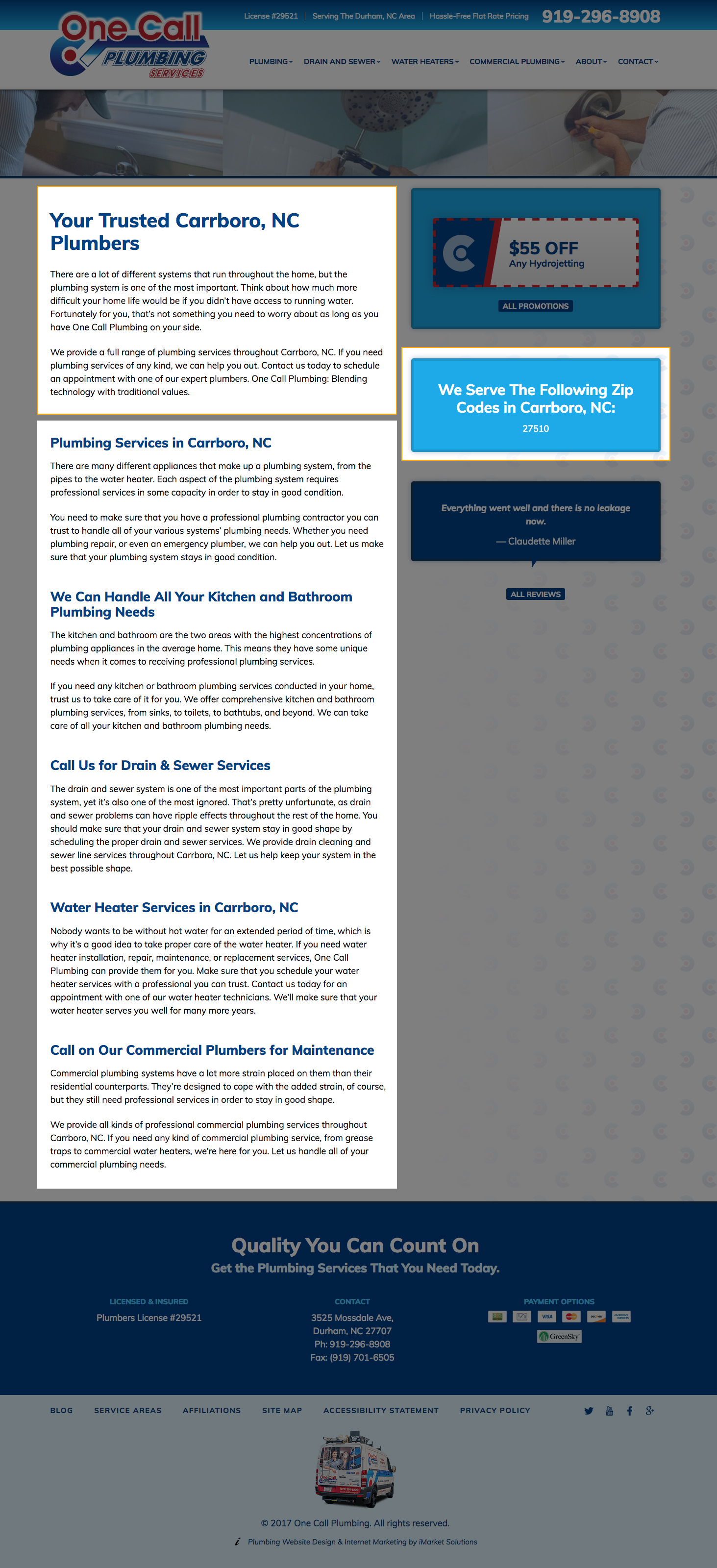
Last updated: