Promotions Module
Use this module to add/edit/delete website promotions.
What Can I Add?
Promotions
Click the “Add Promotion” button to add a new promotion. You can add the following information for each promotion:
- Title: Title of the promotion. The title will appear on the Promotions Landing Page, the Promotional Details Page, and in most cases (depending on the site design) the promotions block.
- Teaser: A short description of the promotion. The teaser will appear on the Promotions Landing Page and in most cases (depending on the site design) the promotions block.
- Content: A full description of the promotion. The content will display on the Promotional Details page.
- Disclaimer: Any fine print regarding the promotion (e.g., “one use per customer”). The disclaimer will display on the Promotional Details page.
- Start Date: The date for the promotion to appear on the site. Leave it blank to make it live immediately.
- Expiration Date: The date for the promotion to be removed from the site. Leave it blank to keep it live indefinitely.
- SEO Title Tag: Text entered here will appear as the title tag on the individual promotion page.
- SEO Meta Description: Text entered here will appear as the meta description on the individual promotion page.
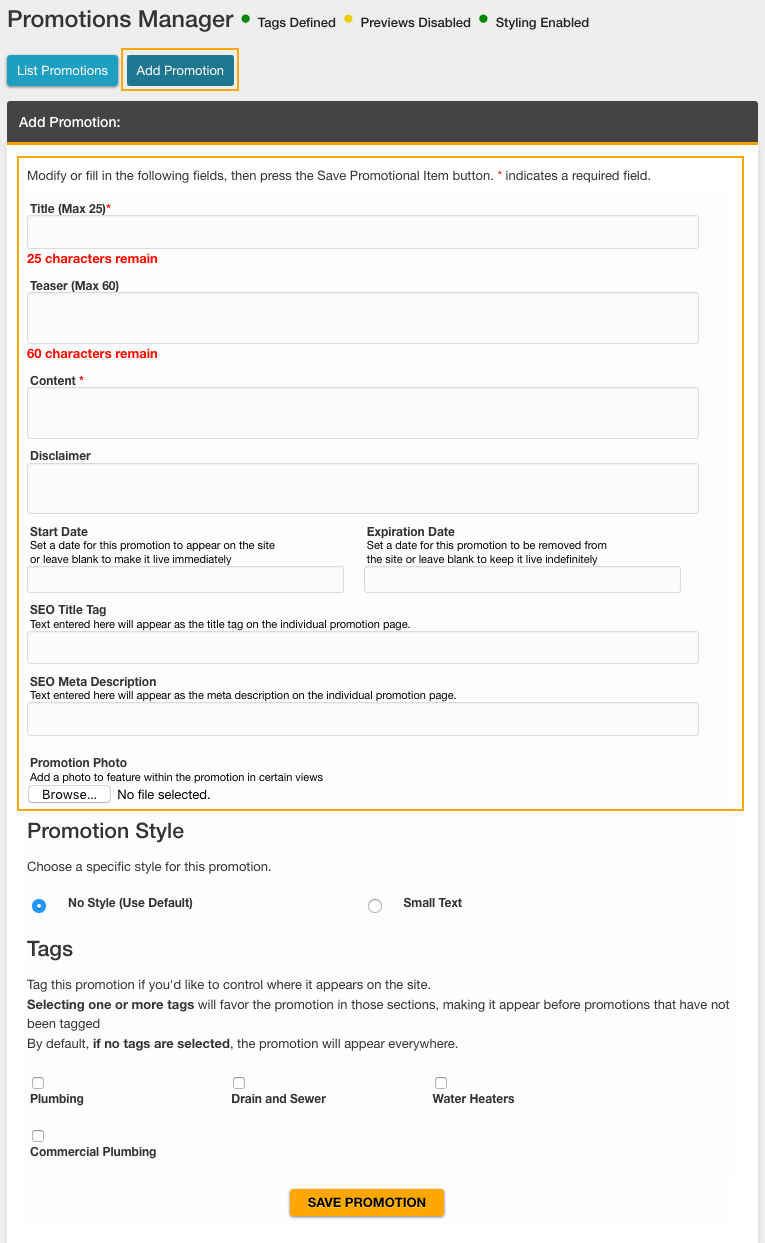
Add Promotion Content
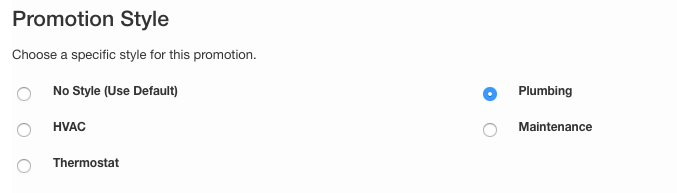
Promotion Style
By default, all the promotions that appear in Promotions Blocks will have custom styling provided by the site design. In some cases, multiple styles are available for individual promotions. Development will add these style options based on the site design.

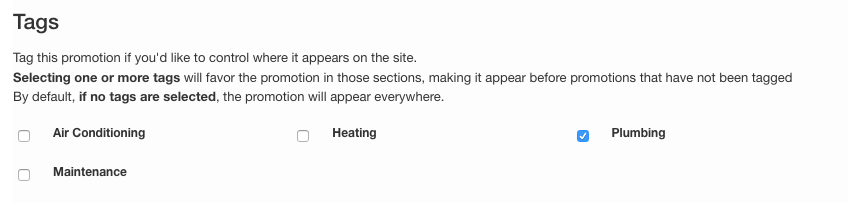
Promotion Tags
By default, the homepage and subpage promotions blocks will display the promotions in order that they display in the module. Selecting a tag will favor the promotion in those sections — making it appear before promotions than have not been tagged by default. By default, if no tags are selected, the promotion will appear everywhere. Development will add tags for each top-level service at the time of site build.
Edit or Delete Promotions
Edit an Existing Promotion
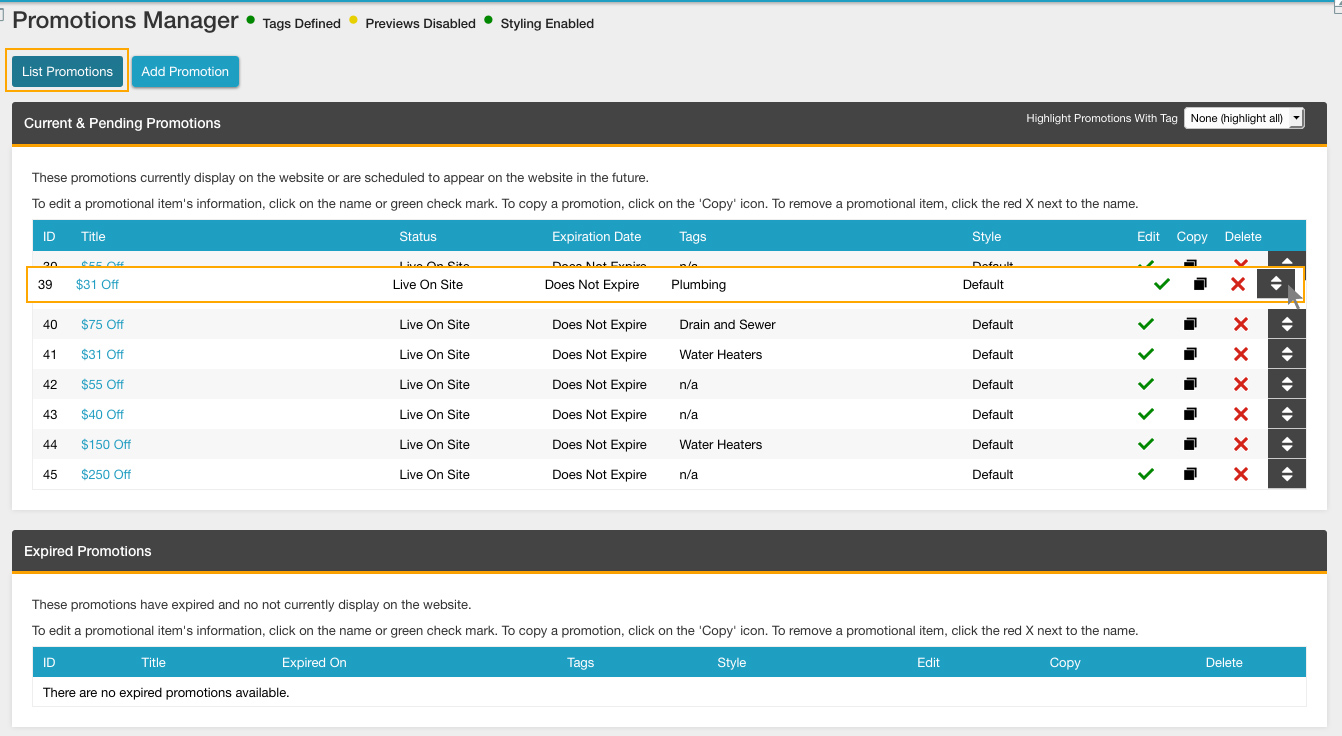
- Go to the “List Promotions” tab in the Promotions module.
- Click the green check mark icon next to the review you want to edit.
- Make desired changes.
- Save.
Delete a Promotion
- Go to the “List Promotions” tab in the Promotions module.
- Click the red “X” icon.
- Click “OK”.
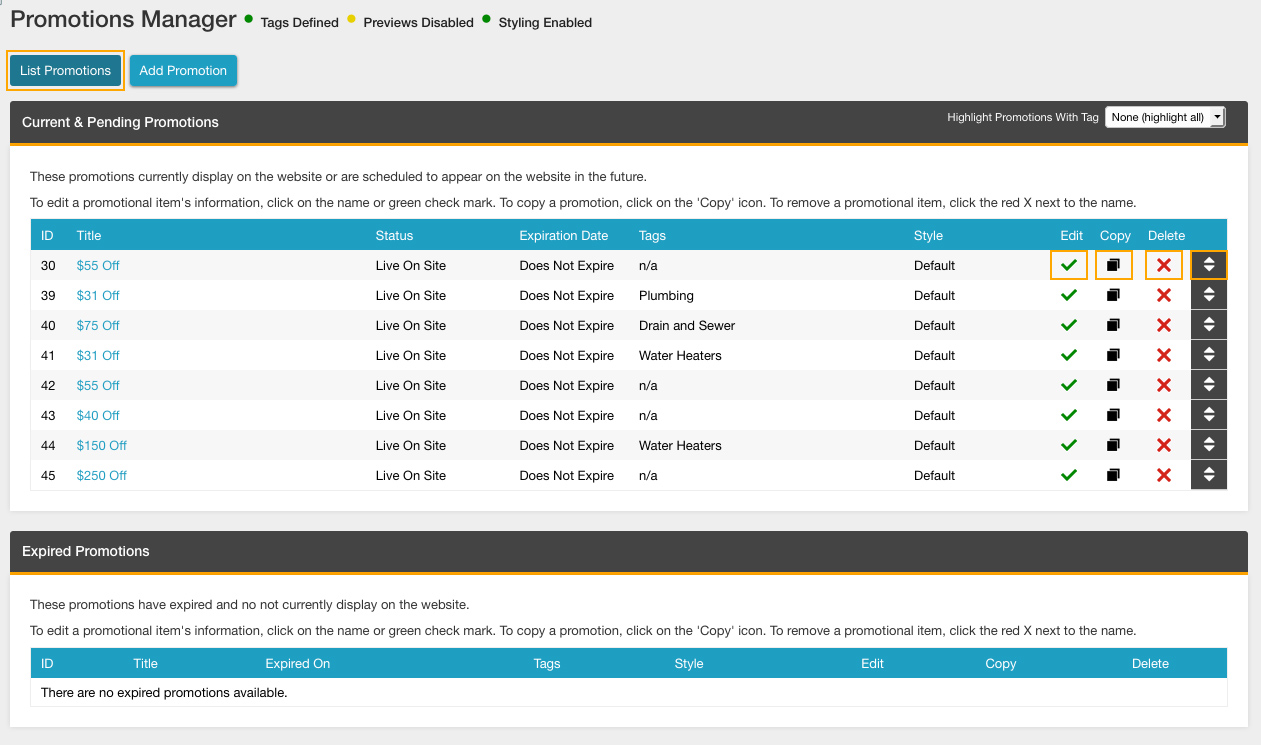
Sort Promotions
While in the list view, promotions can be sorted by dragging and dropping them into the desired order.
Sample Output
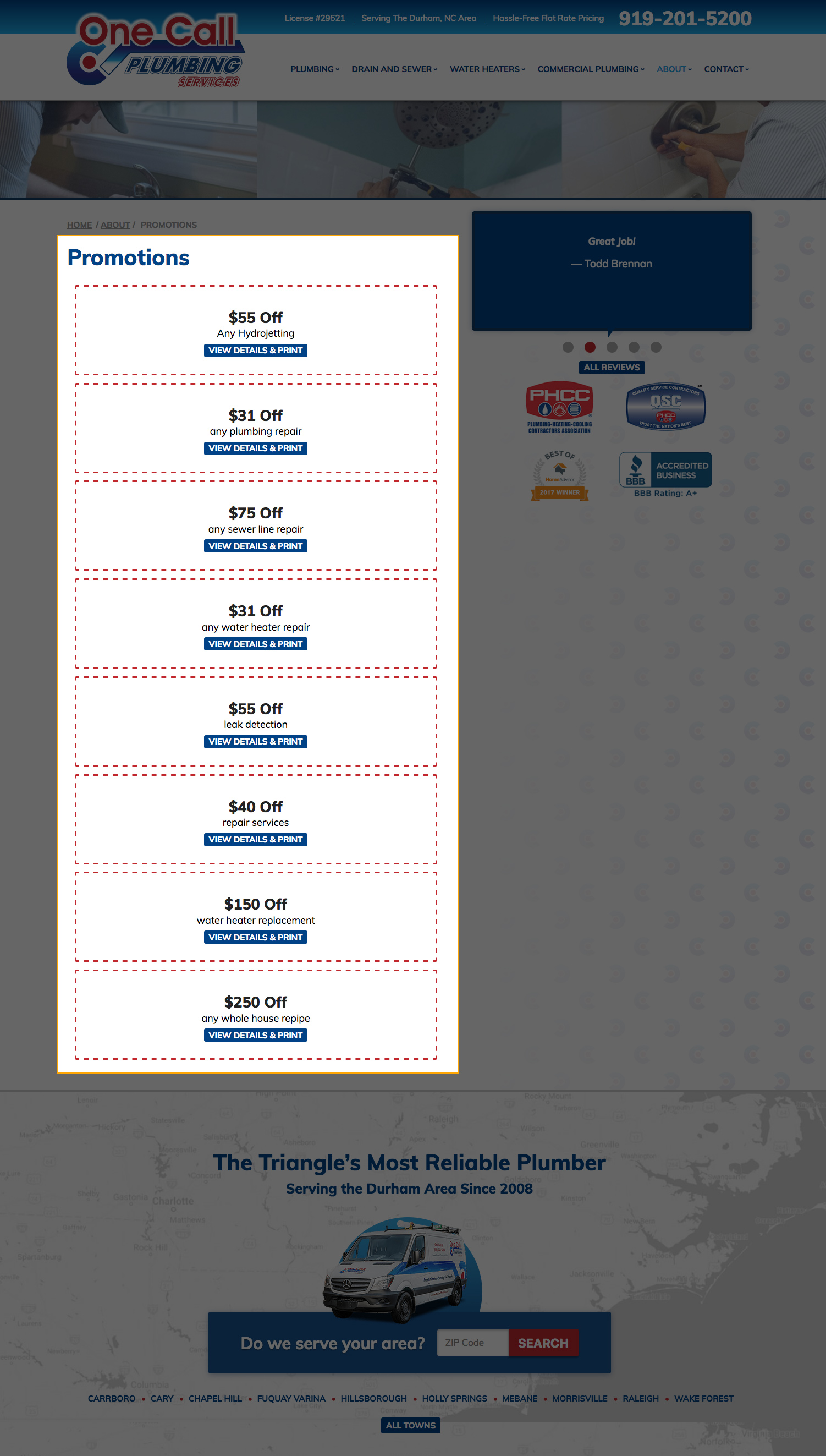
Dedicated Promotions Landing Page
Promotions will be listed on the Dedicated Promotions Landing page in the order they are listed in the module. Additional information about the Promotions Landing Page can be found in the Website Components: Promotions entry.
Promotions Blocks
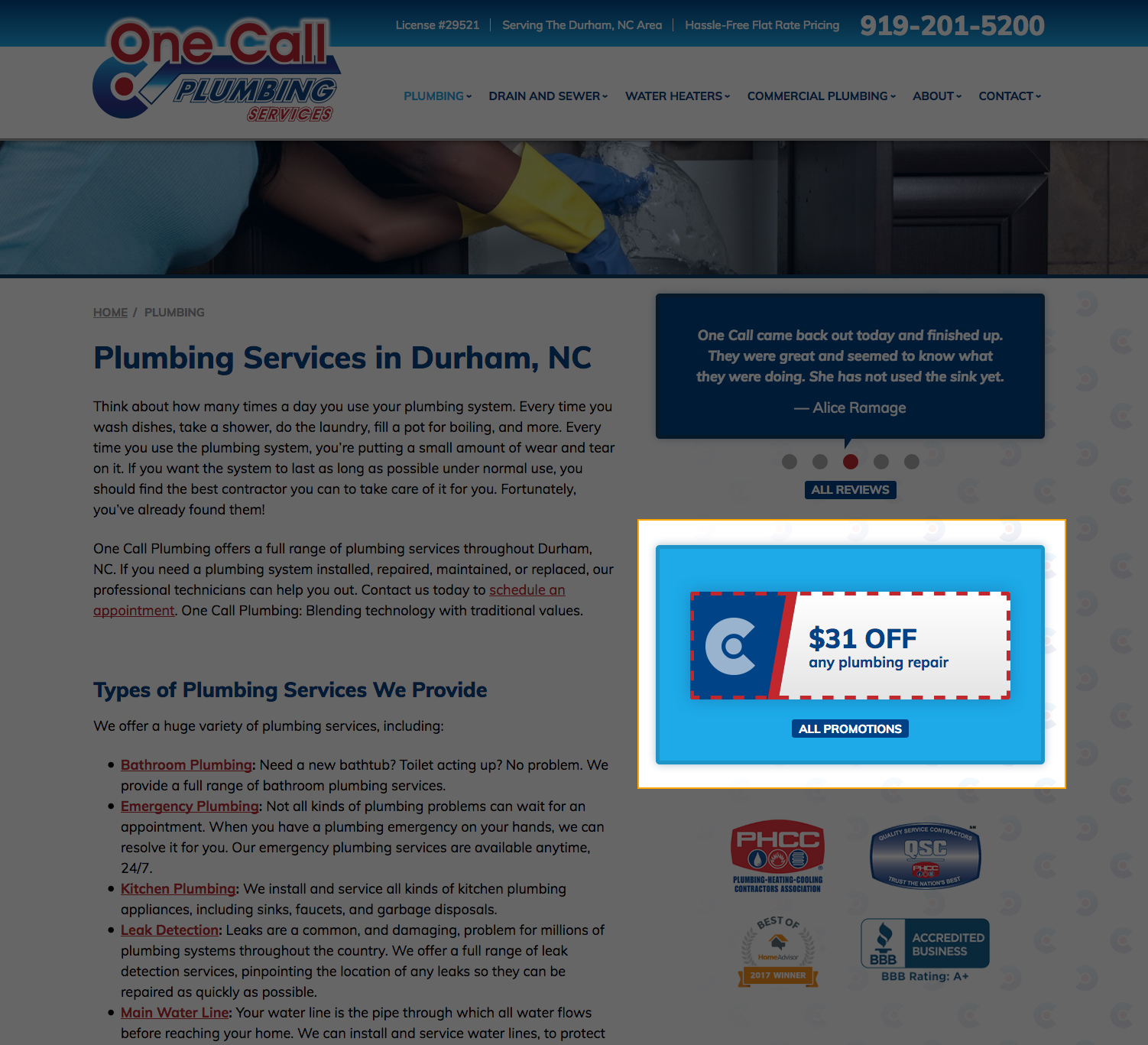
By default, promotions will appear in the Promotions Blocks on the homepage/subpage in the same order as the module. However, as noted above, the subpage will favor promotions with a relevant tag if available.
Additional information about the Promotions Block can be found in the Website Components: Promotions entry.
Last updated: