PPC Module
Use this module to add/edit/delete PPC landing pages.
Note: This module was launched in Q3 2017, after which time all sites built will have the module installed by default. Though some older sites have had PPC content migrated to the module, the majority of sites built before Q3 2017 will not have the module installed. To check if a specific site has the PPC module available, refer to the Site Specs section of the Project Overview in the Dashboard. This entry is only applicable for sites with the PPC Module active.
Preliminary Template Set-Up
Prior to adding new PPC landing pages, Development must build/style the landing page template (This is completed via the SEM Set Up To Do Sequence.)
Styling
At this time, the PPC landing page templates do not use custom styling provided by the Design team. However, the Developer will make tweaks to the default styling to better suit the overall site design/client branding at the time of building the template.
Global PPC Template Content
Per SEM Specialist instructions, Development will add certain content that appears across all PPC landing pages. This content includes:
- Company logo
- Phone image (if applicable). E.g, a 24/7 service available icon
- Company phone number
- Affiliate logos
- Affiliate phone text
- Sidebar content (if applicable)
- Copyright statement
- Company address
- Call extension phone number (if applicable)
Default Content
Per SEM Specialist instructions, Development will add certain content that appears across all PPC landing pages by default, but can be overridden on a page-by-page basis via the module*. This content includes:
- Company tagline (if applicable)
- Phone text (if applicable)
- Service area callout
- Banner heading
- Form heading
- Submit form text
*If these fields are left blank in the module, the default content will display. If content is entered into the field, that content will display instead of the default content.
What Can I Add?
PPC (SEM) Landing Pages
Click the “Add PPC Page” button to add a new PPC landing page.
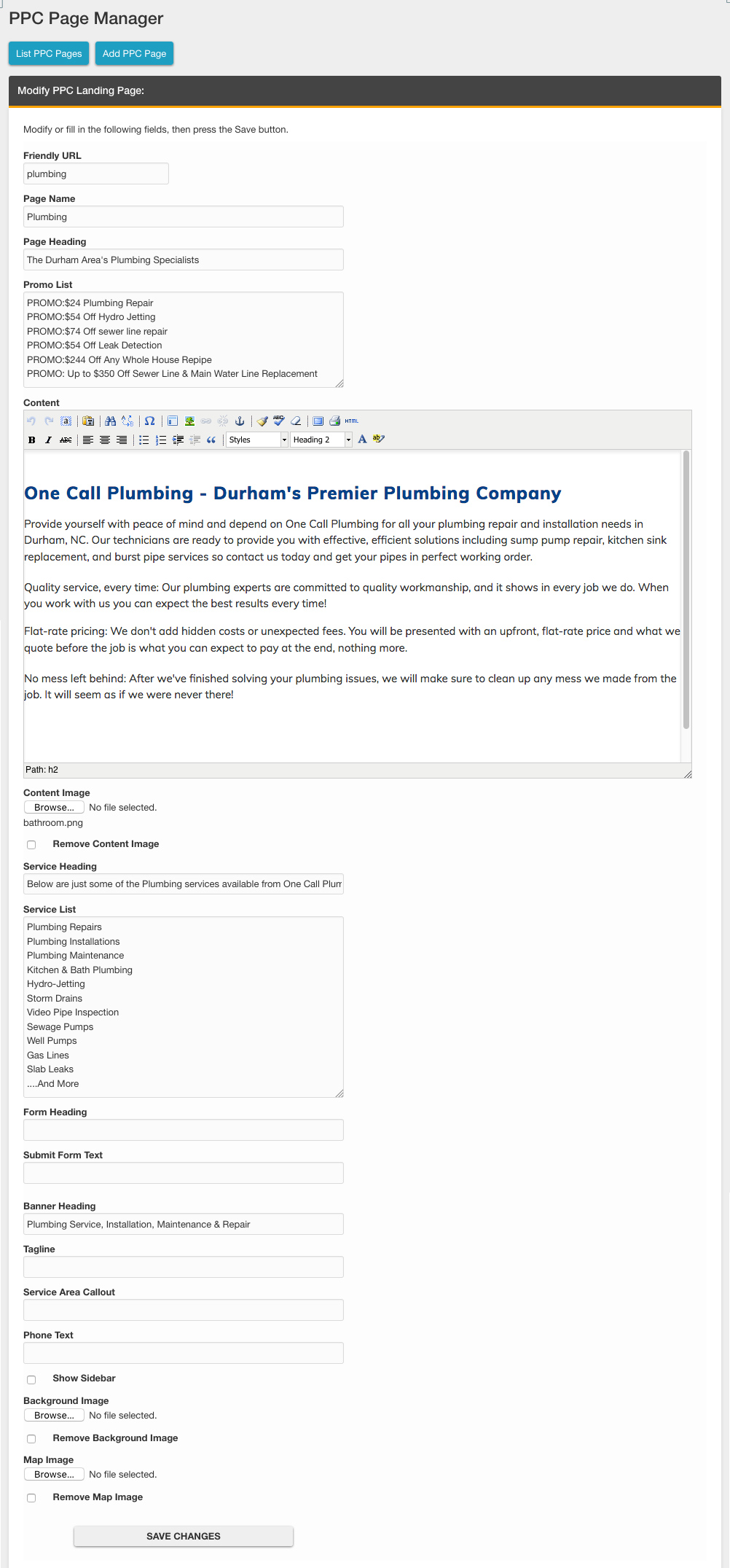
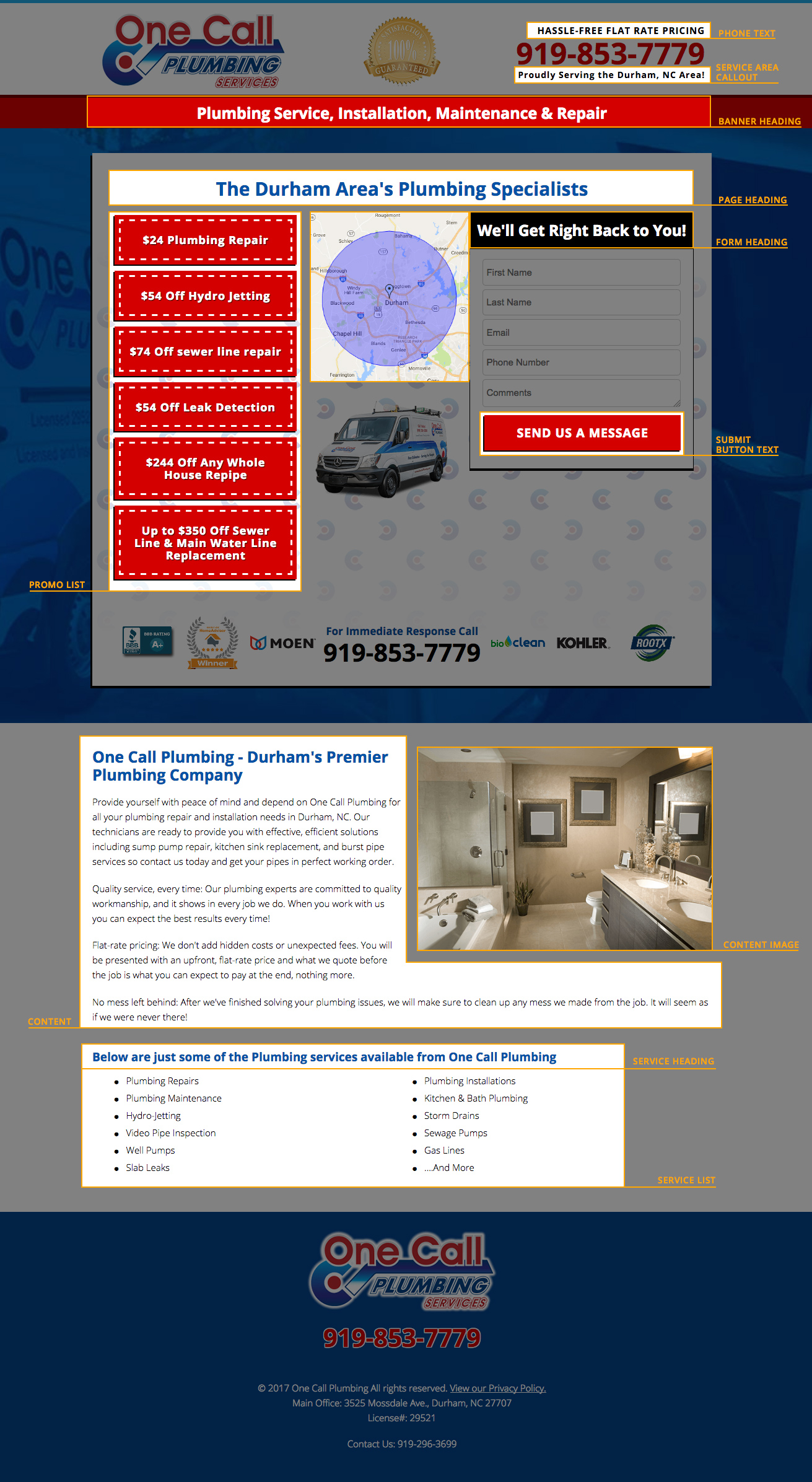
You can add the following information for each page (a sample page is displayed further below with the various content areas noted):
- Friendly URL (for example, enter “plumbing” for the URL to be: http://www.yoursiteURL.com/offer/plumbing)
- Page Name: The page title. It won’t display in the page content, but it will display in the browser tab. This will also be used as the page name in the list view of the PPC module.
- Page Heading: The main h1 for the page.
- Promo List: The list of promotions to display. Each item should be added on a separate line. Add “PROMO:” before the promotion text if you want to use “coupon styling” rather than a standard list.
- Content: The main page content. This should typically include an h2 followed by paragraph text.
- Content Image. The image to display to to the right of the content.
- Service Heading: The h3 to appear above the service list.
- Service List: The list of services offered for this particular page. Each list item should be added on its own line.
- Form Heading: The callout text that appears above the main contact form.
- Submit Form Text: The text to appear on the submit button of the main contact form.
- Banner Heading: The text to appear in between the masthead and the content area.
- Tagline: (If applicable) The tagline to appear under the company logo in the masthead.
- Service Area Callout: The service area location callout text to appear in the right side of the masthead.
- Phone text: (If applicable) The text to appear above the phone number in the masthead.
- Show sidebar: (If applicable) Select this box to display the sidebar on this page. Note: Development must add/style the content for the sidebar before this option can be used.
- Background Image: Upload a custom background image for the top content area of this page.
- Map Image: Upload a custom image to appear next to the contact form.
Edit/Delete PPC Pages
Edit an existing PPC page
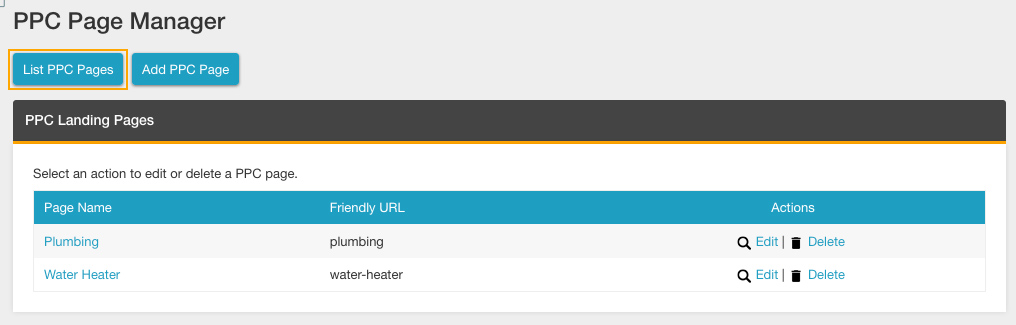
- Go to the “List PPC Pages” tab in the PPC module.
- Click the EDIT button adjacent to the page you wish to edit.
- Make the desired edits.
- Save.
Delete an existing PPC page
- Go to the “List PPC Pages” tab in the PPC module.
- Click the DELETE button adjacent to the page you wish to delete.
Last updated: