Gallery Module
Use this module to add or edit photo galleries.
Preliminary Gallery Page Set-Up
Before this module can be used, Development must build/publish the Gallery Page in the iMarket CMS and enable the module. Open a ticket to Development if this page does not exist yet and/or if the module is not enabled.
Styling
At this time, the Gallery page does not use custom styling provided by the Design team. However, the Developer may make small tweaks to the default styling to better suit the overall site design at the time of building the gallery page.
What Can I Add?
Gallery Albums
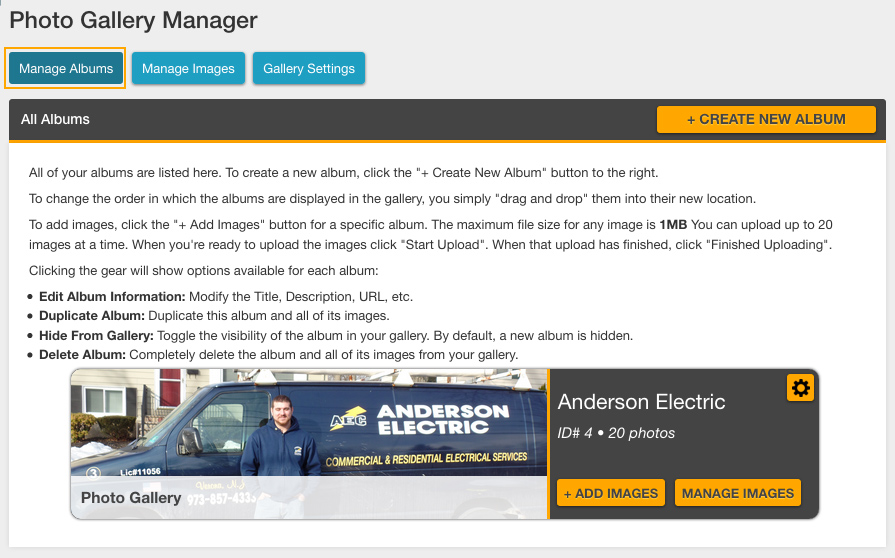
- While in the “Manage Albums” view, click the yellow “+ Create New Album” button. You can enter the following information for each album:
- Title: Displays on the gallery page if there are multiple galleries to choose from
- Description: Displays above the gallery images
- Friendly URL: For example, if you enter “heating“, the album will be located at http://www.yoursiteurl.com/gallery/heating
- Meta title: The title will not display in the page content, but it will display in the browser tab. Used for SEO purposes.
- Meta description: Used for SEO purposes.
- Title: Displays on the gallery page if there are multiple galleries to choose from
At this point, the gallery album will appear in the list of albums in the module, but it will be grayed out (which means it’s hidden). You will need to add at least one image before you can set the gallery as visible (how to add images is outlined in the next section).
- Once you’ve added your images, return to this screen and click the yellow gear icon on the album.
- Select “Show in Gallery” from the menu that appears to make the album visible.
Gallery Images
- While in the “Manage Albums” view, click the yellow “+ Add Images” button on the album you want to add images to.
- Use the image uploader to upload a single or multiple images to your album.
- After the upload is complete, you will be redirected to the “Manage Images” tab, where you can add information about each image. You’ll notice there is an option to view images from all albums or to view images in a specific album.
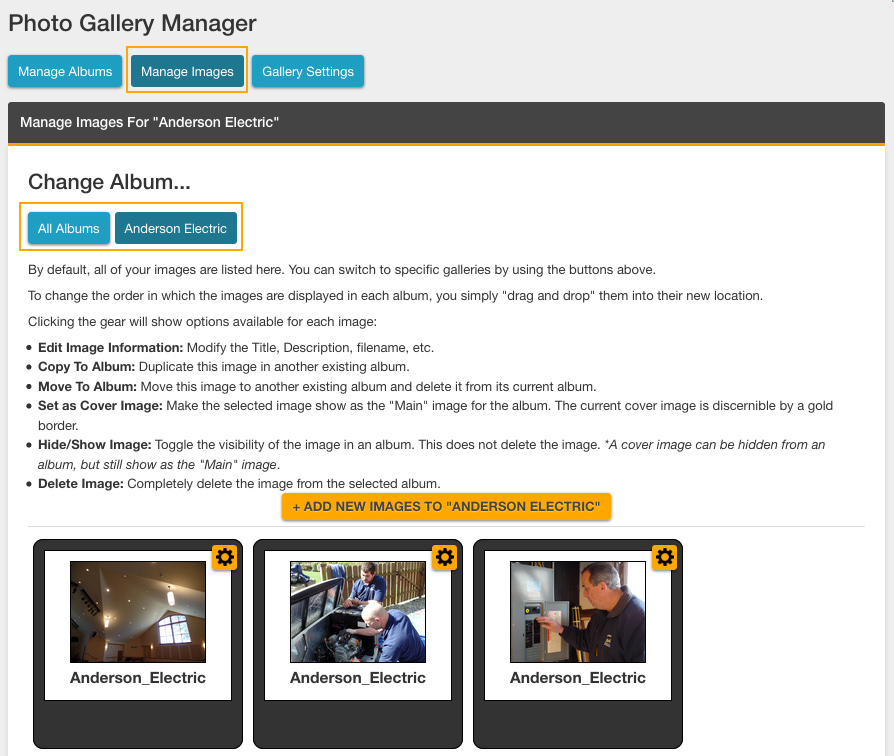
- Click the yellow gear icon on the image you wish to edit, and select “Edit Image Information” from the menu that appears. For each image, you can add:
- Title: Displays above the image in the slideshow view.
- Description: Displays below the image in the slideshow view.
- File Name: Creates the URL for the image.
- Meta Alt Tag: Used for SEO purposes, and will display if the image does not load properly.
- Meta Description: Used for SEO purposes.
Editing/Deleting Gallery Albums
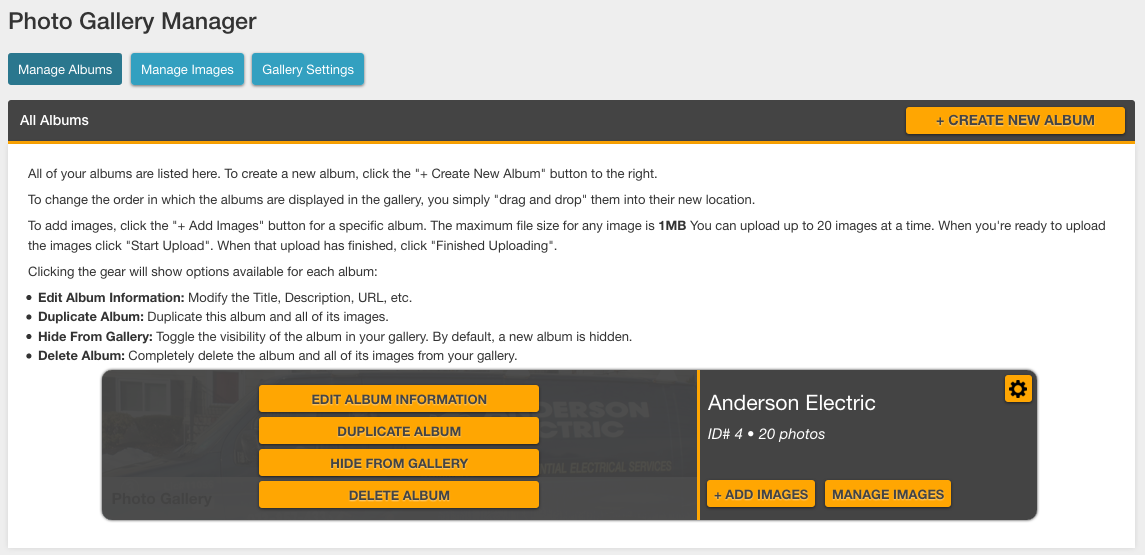
Edit an Album’s Details
- Go to the “Manage Albums” tab in the Gallery module
- Click the yellow gear icon next to the album you want to edit
- Select “Edit Album Information” to edit the album details
- Select “Hide from Gallery” to hide the gallery from the gallery page
- “Select “Delete Album” to delete the gallery completely (from the module and the gallery page)
Duplicate an Album
- Go to the “Manage Albums” tab in the Gallery module
- Click the yellow gear icon next to the album you want to edit
- Select “Duplicate Album” to make a copy of the album
Delete an Album
- Go to the “Manage Albums” tab in the Gallery module
- Click the yellow gear icon next to the album you want to edit
- “Select “Delete Album” to delete the gallery completely (from the module and the gallery page)
Edit Images
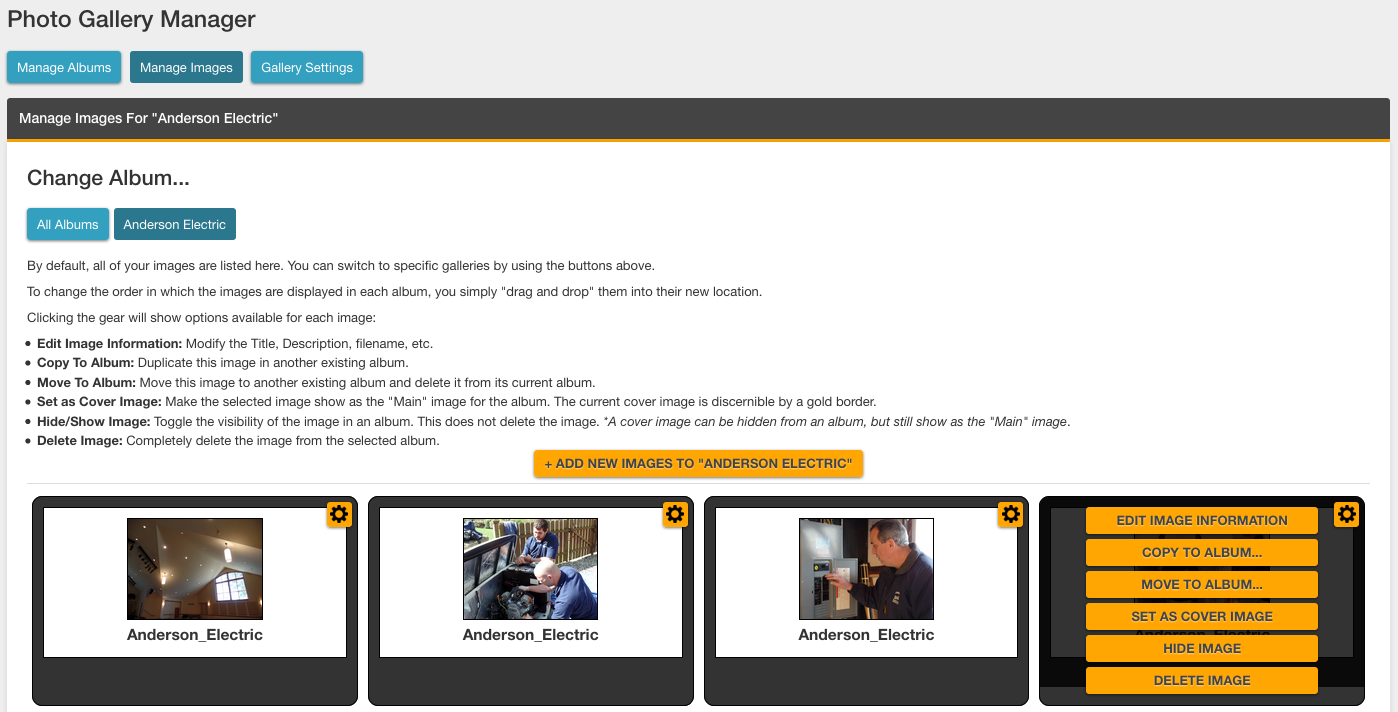
- Go to the “Manage Albums” tab in the Gallery module and click the yellow “Manage Images” button. Alternatively, select the “Manage Images” tab from the Gallery Module.
- Edit the images as needed
- Reorder the images by clicking and dragging the images into the desired order.
- Click the yellow gear icon to open a menu with more editing options
Change the Gallery Settings
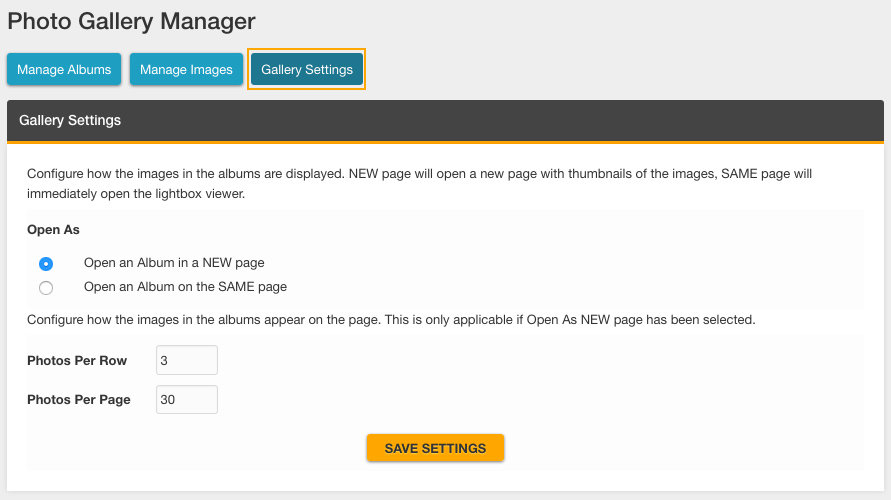
- Select the “Gallery Settings” tab in the Gallery module.
- Set the global settings for the gallery pages:
- Select if you want an album to open in the current tab or a new tab
- Configure how many images appear per row and per page. (Assuming the “open as new page” option has been selected.
Sample Output
Single Album
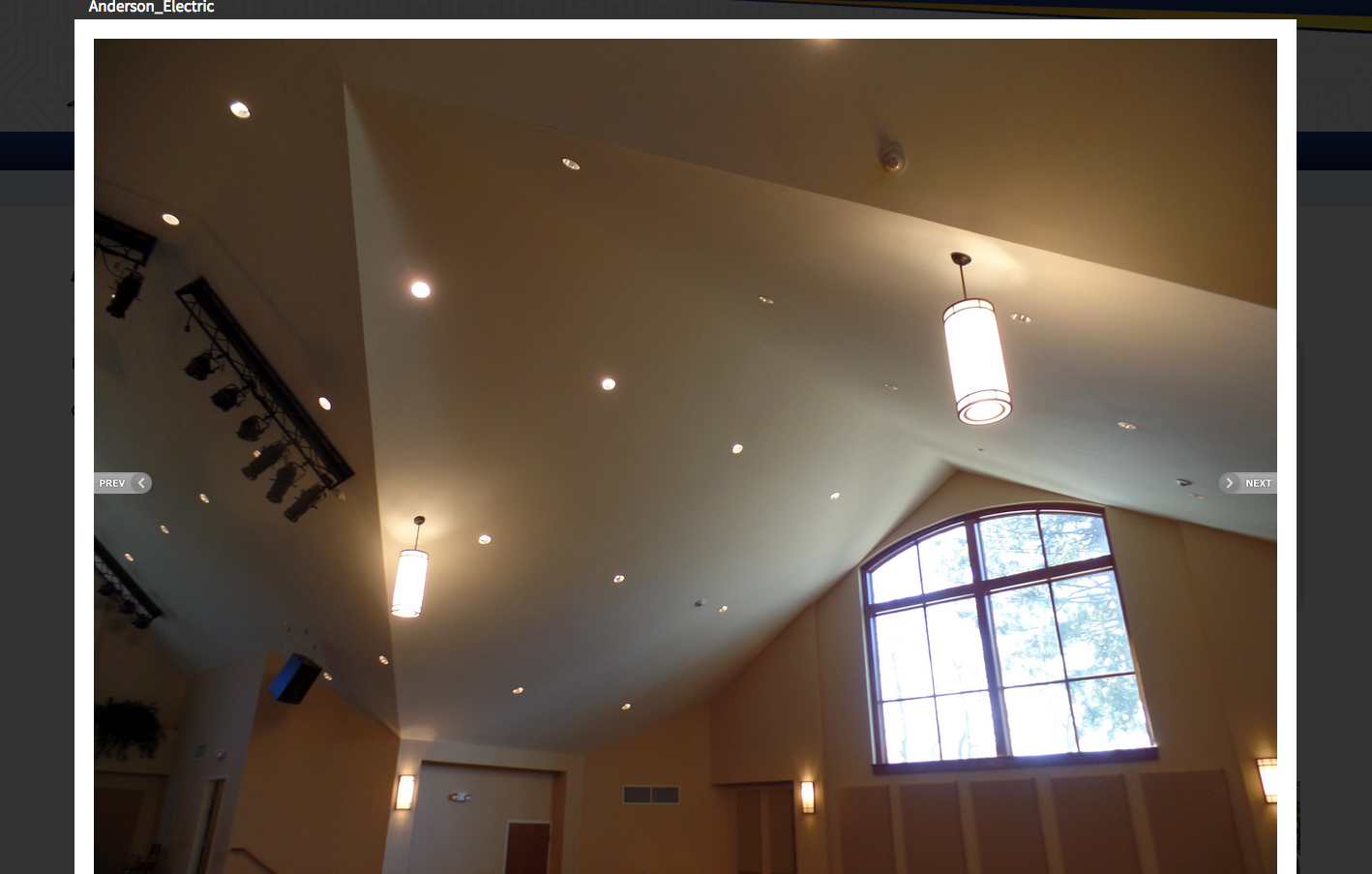
If there is only one album set as visible in the module, the gallery link in the navigation menu will send the user directly to the visible album’s page, as pictured below.

Clicking on an image will open the image in a slideshow view.
Multiple Albums
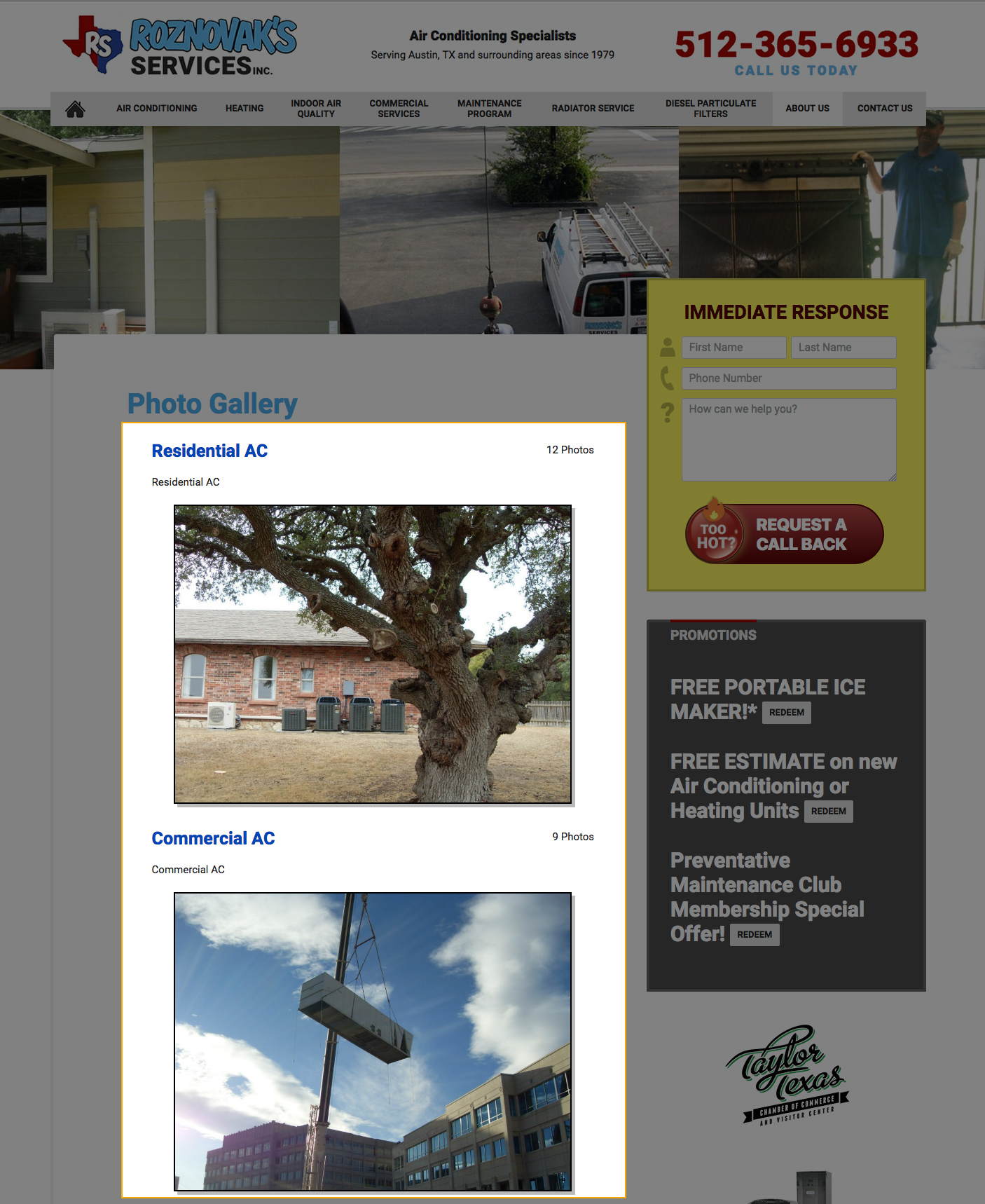
If there are multiple albums set as visible, the gallery page will display each album in a list form. The album will display with its title, description, and a thumbnail image. Clicking on the thumbnail image will open the individual gallery’s page.
Custom Gallery Embeds
Specific galleries may be embedded on standard content pages rather than the Gallery page (ex: a plumbing gallery can display on the plumbing page). Please open a ticket to Development to add specific galleries on content pages.
Last updated: