Contact Forms Module
Use this module to edit existing contact forms fields/settings and to view contact form submissions.
What Requires a Ticket?
The following types of edits are restricted to Development logins, and so, for any of the following requests please open a ticket to Development:
- Adding a new form
- Deleting a form (and its corresponding page)
- Editing form field text or multiple choice options
- Changing a form field’s “type” (i.e, text input, multiple choice, radio options, etc.)
- Rearranging the order of form fields
- Adding a new field separator
- Adding emails to the spam-protection blacklist
- Altering a form’s default lead status
- Turning on/off form completion emails
- Changing the type of spam protection in place
Edit Contact Forms
Edit an Existing Contact Form
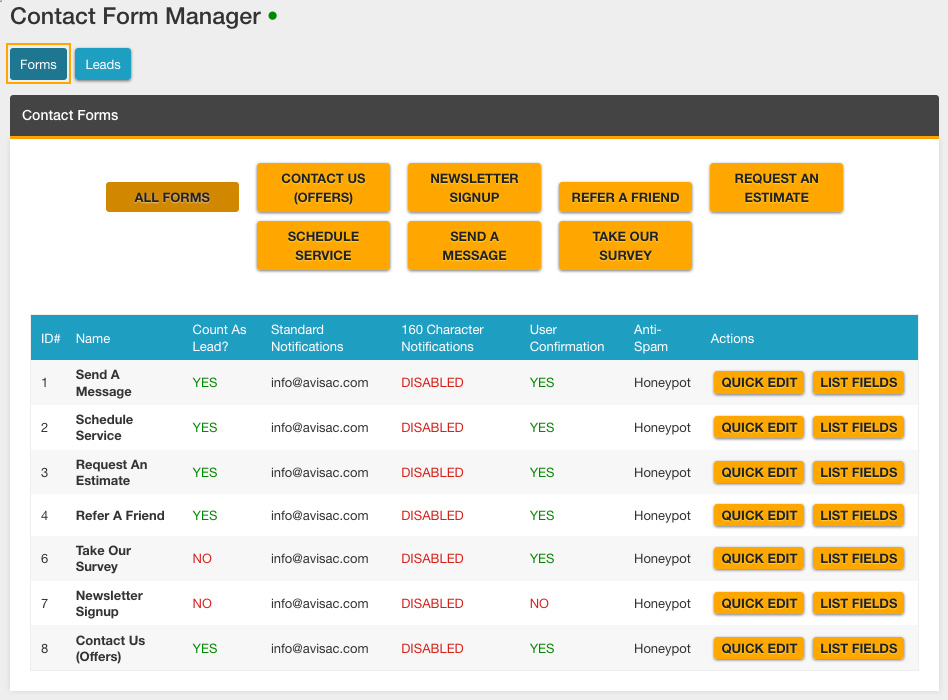
- Click the “Forms” button in the upper left-hand of the window to edit/view all forms. To edit a form, click on the yellow button with the form’s name, or select the corresponding “List Fields” from the right-hand side.
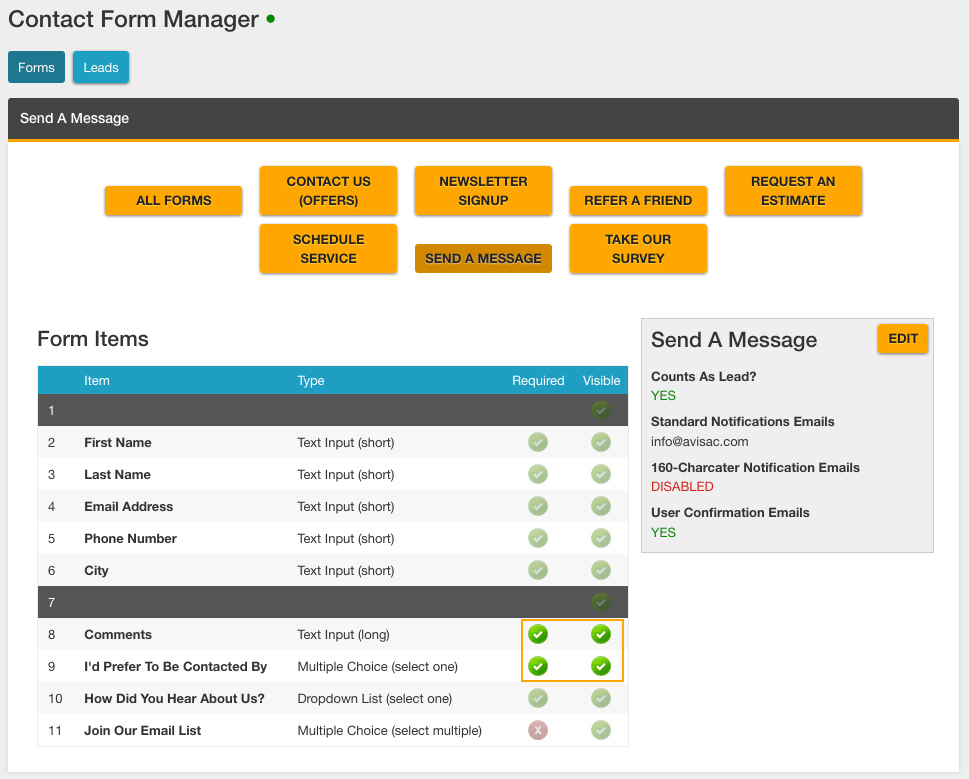
- Some form fields will be grayed out because they have Developer-only permissions. If a form field is available for editing, you can toggle it as visible/hidden and required/not required per client’s specifications. To make changes to a grayed out field, please open a ticket to Development.
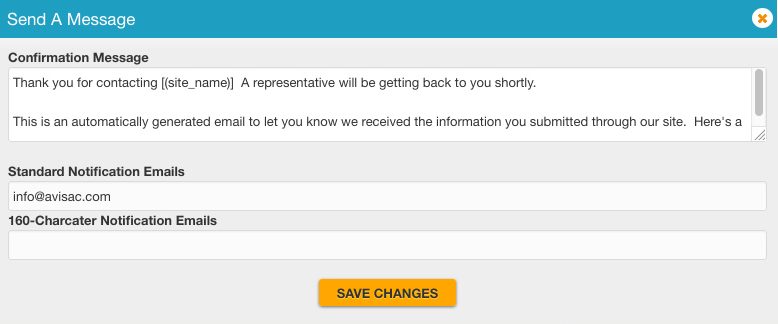
- On the right-hand side of the editor window, the form’s general settings will display. Selecting “edit” will open a new window where you can edit the confirmation message and change the email addresses assigned to receive standard notification emails.
Viewing/Editing Leads
Clicking the blue “Leads” button in the upper left-hand corner of the editor window will open the Leads view.
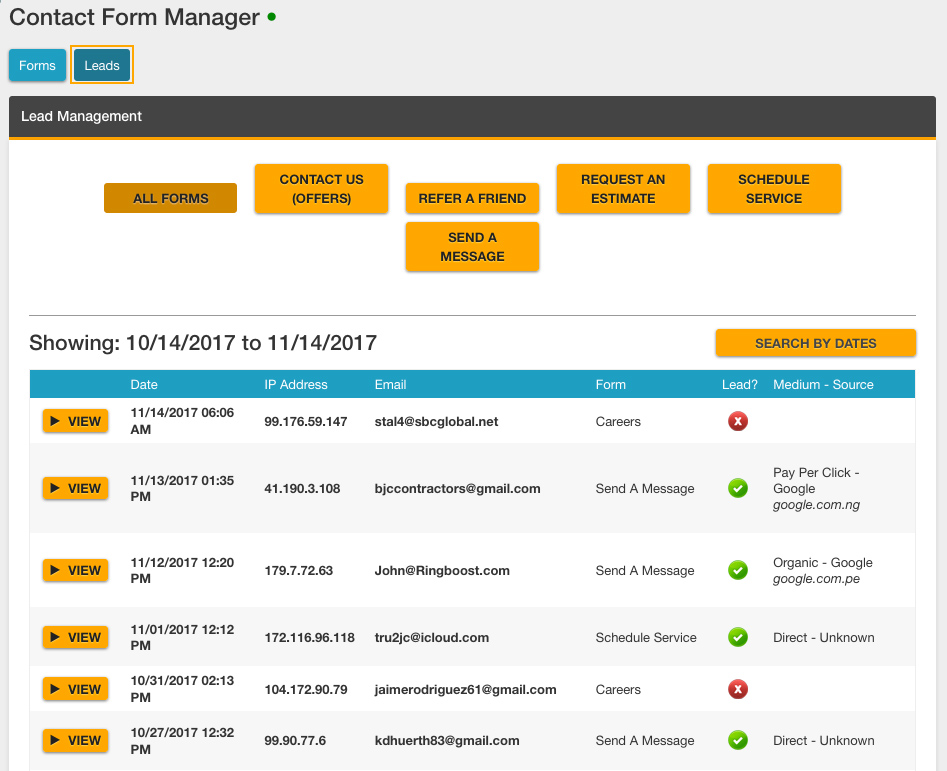
By default, the window will display all form submissions for the past month. You can alter the date range by using the yellow “Search By Dates” button on the right-hand side. To filter submissions by each form, select the yellow button with the form name you wish to view.
The content of a particular form submission can be viewed by selecting the corresponding yellow “view” button to the left of the submission details. The details available in the list view are:
- Date of submission (the timestamp is displayed in the timezone of the company)
- The IP address where the form submission was sent from
- The email address entered by the form submitter
- The name of the form submitted
- Whether or not the form counts as a lead (this defaults to the lead’s settings, but you can change this by toggling the icon in the lead column).
- The medium and source of the lead. This information is gathered using the iMS Analytics tool.
Last updated: