iMarket CMS Manager
The iMarket CMS Manager is the interface used to make changes to a client website.
Logging In
The web address of all iMarket sites follows the same format: http://thesiteurl.com/manager. The password for the iMarket Staff user login is the same across all iMarket Sites, and it can be found in the Dashboard. If you get locked out of the manager (because of too many failed login attempts, e.g.), open a ticket to Development to remove the block.

Navigation
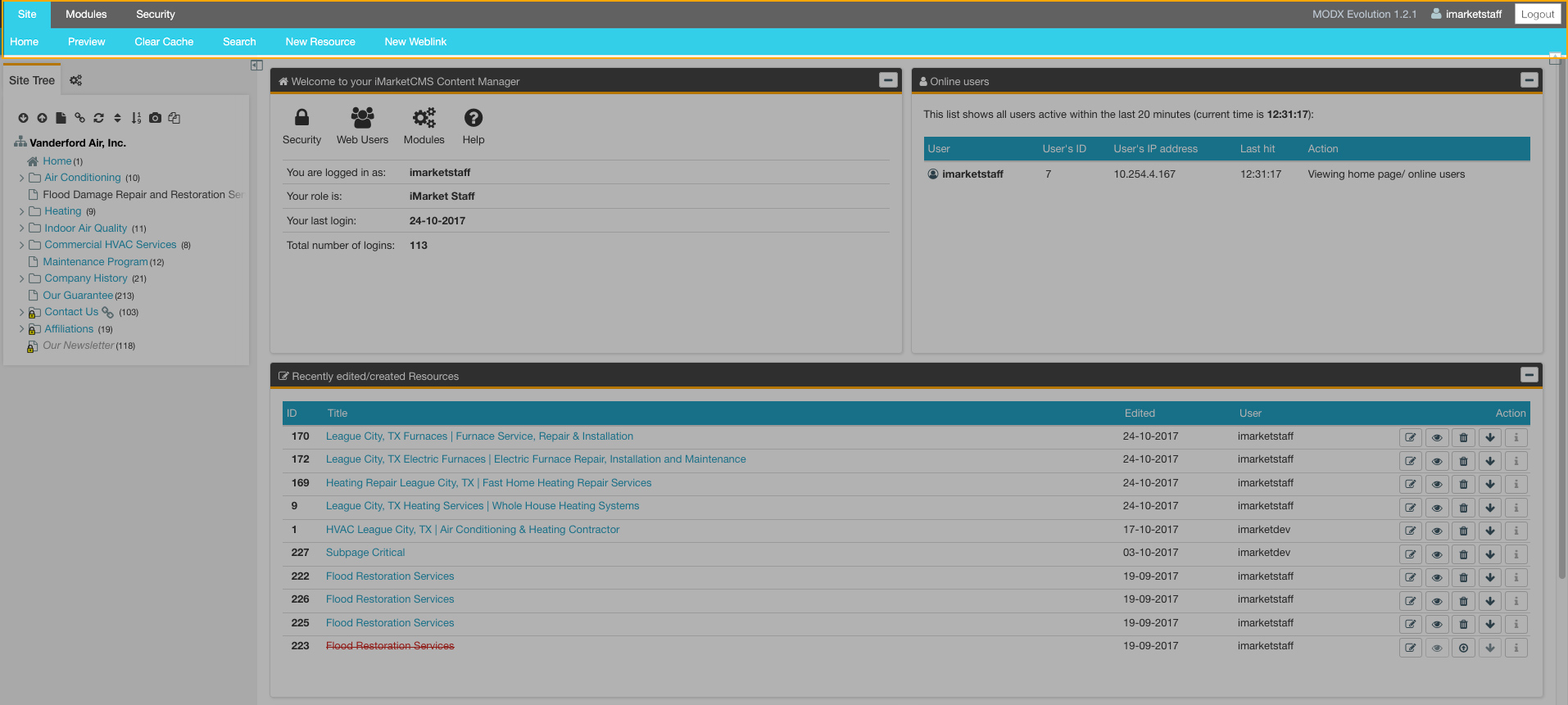
The Manager Navigation area is the global CMS navigation used to access custom modules and manage Users, Roles, Document Groups. iMarket Staff users will likely only use this area for accessing modules or logging out (via the button on the right) most other functions are for Development and Programming use only.
Main Content Area
The Main Content area is where documents or modules that are currently being viewed or edited will be displayed. Upon initially logging into the manager, this area will display some higher-level information such as whether or not other users are logged in, what resources were recently edited/created, and MODx news/alerts.

Site Tree
The Site Tree displays a list of all the resources (pages and weblinks) in the website. Clicking on a page in the resource list will make the page appear in the Main Content area for editing.
Right clicking on a document in the list will bring up a menu from which you can View, Edit, Move, Duplicate, Delete and Publish/Unpublish each document.
Some pages will be restricted so that only Developers can view and edit them. In this case, the page will not appear in the site tree for a non-development login (ie., iMarketStaff). Open a ticket to Development to edit a page that you are unable to view or edit.

Some resources in the Site Tree have special styling. The designations are as follows:
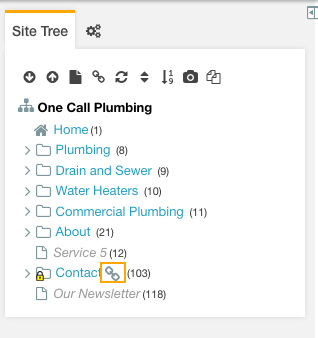
Weblinks: Display with a chain icon to the right of the name
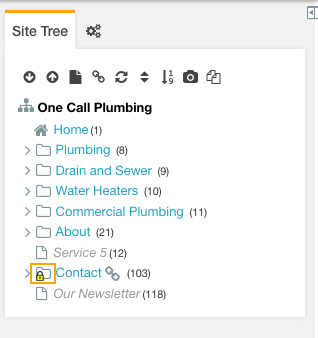
Restricted Permissions: Display with a lock icon on top the folder icon.
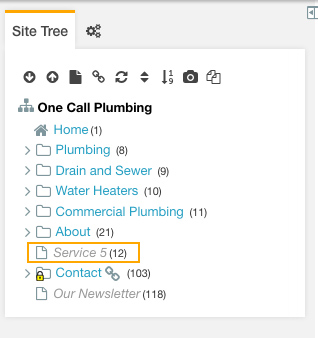
Unpublished Resources: Display in italics and gray font.
Deleted Resources: Display in red and strikethrough font. Though these resources are technically “deleted”, the deletion is not yet permanent. Only Development can permanently delete resources from a website.

Last updated: