Videos
Best practices
Videos should come from external sites (e.g. YouTube).
We will not host videos (except in rare cases, such as hero background videos. In those cases, please open a ticket for Development to handle.)
Videos should be embedded using the [!youtube_embed!] shortcode (details below).
If the video is not hosted on YouTube (occasionally videos are hosted on Vimeo or Facebook, e.g.), then we will use an alternate method to embed it. Please open a ticket to Development in this case.
The [!youtube_embed!] shortcode will not work on non-responsive websites.
If you need to add a video to a non-responsive website, please open a ticket to Development.
Adding a Video with the [!youtube_embed!] Shortcode
Using the [!youtube_embed!] shortcode comes with a variety of benefits, including reducing page load speed (by loading the video only if a user clicks the play button), and making sure that videos are responsive by default. All YouTube videos should be added to sites using this method.
- Paste the following shortcode where you would like the video to appear:
[!youtube_embed? &video_id=`12345` &mode=`image` &autoplay=`TRUE`!] - Replace 12345 with the ID of the YouTube video you want to embed.
- Save, and visit the page on the site to make sure that the video appears how you expected it to.
- Click the Play Button* on the video to make sure that the correct video has been added and will play on the site.
*If you do not see a “Play” button appear over the video, please open a ticket for Development requesting that the “Play” button be added to videos on the site.
Example:
Youtube Link: https://www.youtube.com/watch?v=xXAy_QU5WE8
Video ID: xXAy_QU5WE8
Final shortcode to add video to the page:
[!youtube_embed? &video_id=`xXAy_QU5WE8` &mode=`image` &autoplay=`true`!]
Output:

Wrapping Text
If you want text to wrap around your video, add the <div class="image-right"></div> or <div class="left"></div> HTML tags around your video.
Note: This will require editing the resource’s content as HTML. You can click the HTML icon in the TinyMCE Toolbar to open a dialog box with the content displayed in HTML. 
Video to the right of text:
<div class="image-right">
[!youtube_embed? &video_id=`12345` &mode=`image` &autoplay=`TRUE`!]
</div>
Video to the left of text:
<div class="image-left">
[!youtube_embed? &video_id=`12345` &mode=`image` &autoplay=`TRUE`!]
</div>
Output: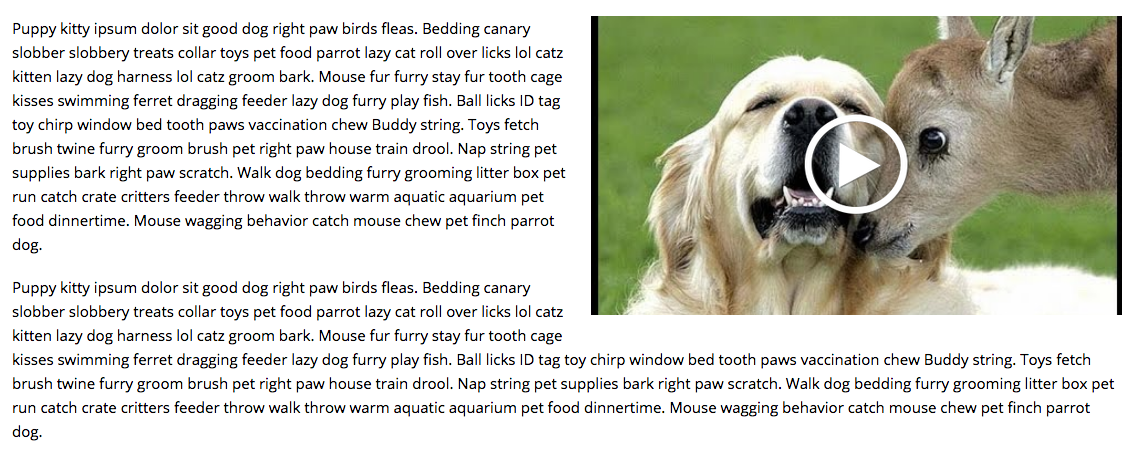
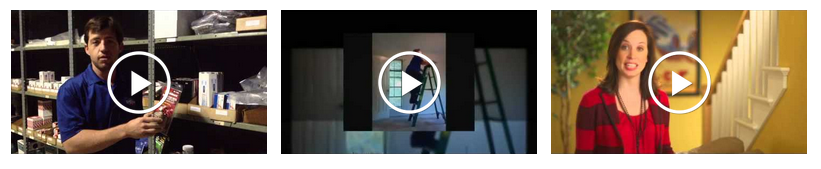
Video Gallery
Development can add functionality so that videos appear side by side in rows. This can be useful for pages with multiple videos, such as video galleries. To use this feature, modify your shortcode to the following (again, replacing the 12345 with your video’s ID):
[!youtube_embed? &video_id=`12345` &mode=`image` &autoplay=`true` &container_tpl=`video_gallery_vid`!]
If the videos do not appear, it may be because the video gallery functionality is not installed on your site. In this case, please open a ticket to Development requesting we add this option.
Last updated: