Images
Best practices
All images that are added to a website should be added by first using the “insert predefined template content” tool in the TinyMCE editor.
This feature will allow you to wrap the image properly in line with the text. The process is outlined below.
Images should be properly sized in a photo editor prior to adding to the website.
What we want to avoid are excessively large images, which will lead to slower page load times.
How to add an image to a webpage
All images should be added by first inserting a predefined template. These templates have been built into the iMarket CMS manager to allow for images to behave as instructed without writing any code.
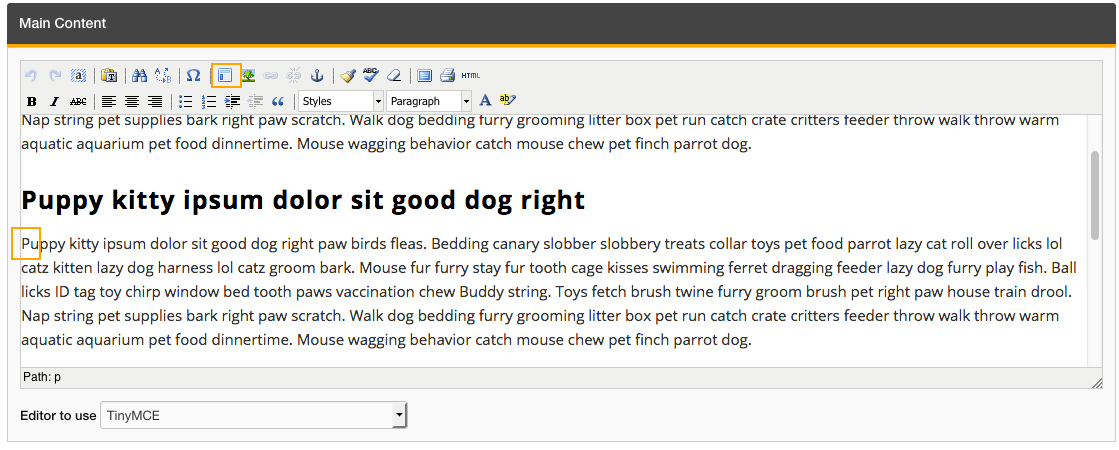
- Place your cursor where you want the image to appear. In this example, we are going to place the image floated to the left of the paragraph text.
- Select the “Insert Predefined Template” option from the TinyMCE toolbar.
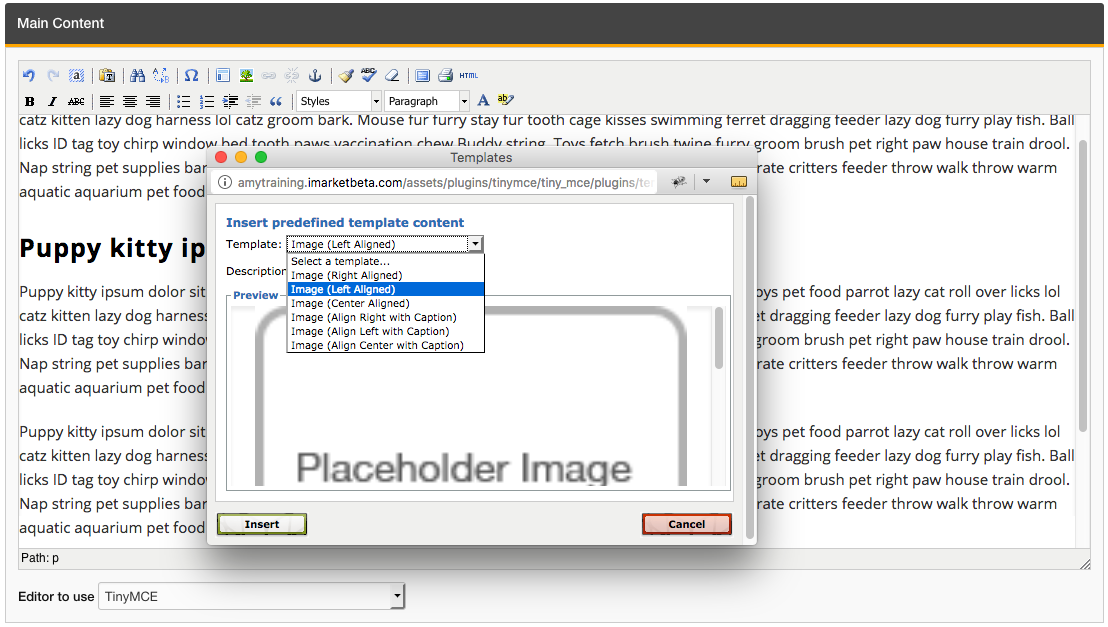
- A dialog box will open with a list of image alignment options. Select the option you need, and hit “Insert.”
- Now we have a predefined template in the correct positioning, but it contains a placeholder image. The next step will be to replace the placeholder image with the image you want to use.
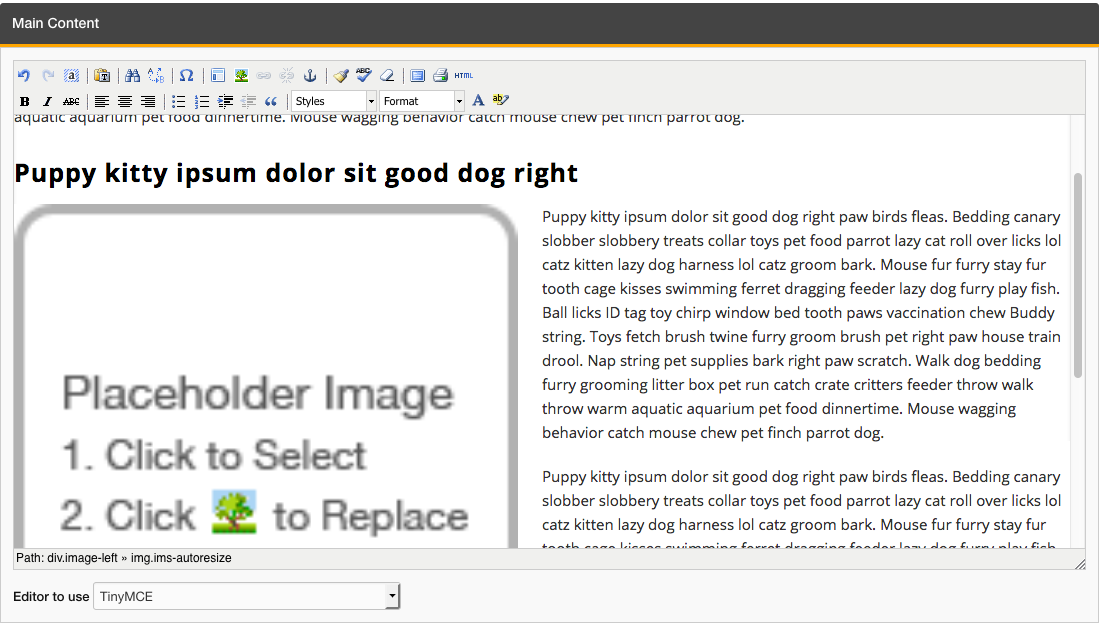
- Be sure the placeholder image is highlighted, and select the “Insert Image” option from the TinyMCE toolbar.
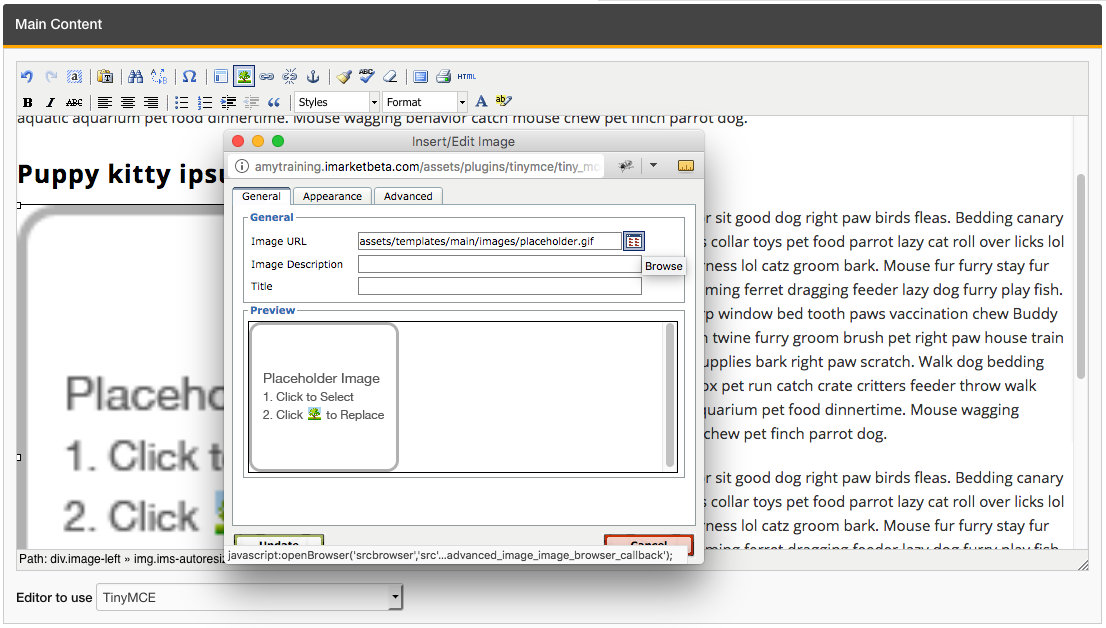
- Select the Browse icon (next to the image URL field) to find the image in media library or upload a new image to the media library. Once you have the correct image, hit “Update”.
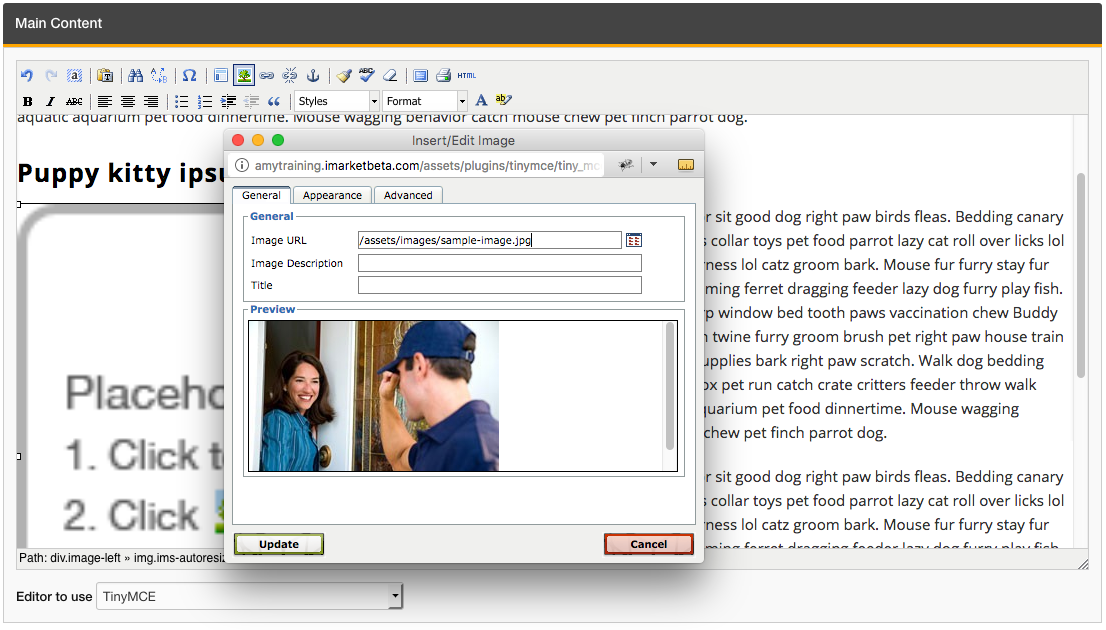
- Be sure the image is aligned with the text as you originally intended. Don’t worry too much about the sizing of the image, as the webpage has a built in image optimizer that will size it accordingly on the front end. Right now we’re just concerned with alignment.
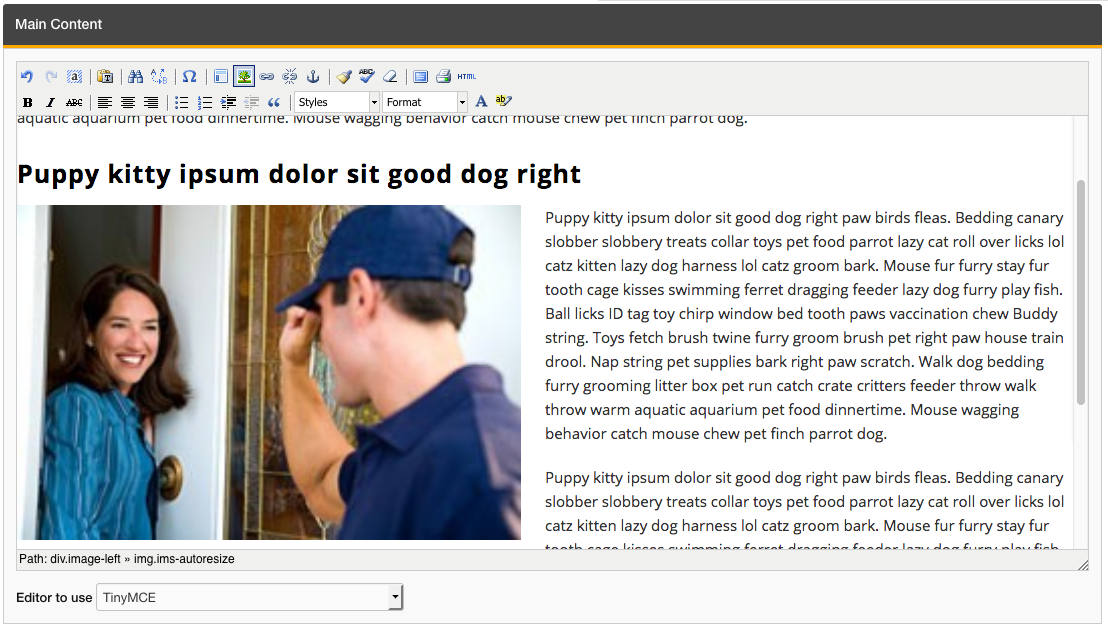
- Save the page. Hit the “Preview” button to view the page—or navigate to it in your browser—to be sure everything looks correct.

- If something went wrong and your page looks broken, take a screenshot of the issue, undo your work, and open a ticket to Development to troubleshoot.
Last updated: