Banner Slideshow
Use this to add/edit/delete banner images from the homepage hero container.
Note: As of Q4 2017, iMarket made the decision to move away from the banner module (you can read more about this decision here). To check if a specific site has the banner module available, refer to the Site Specs section of the Project Overview in the Dashboard. This entry is only applicable for sites with the Banner Module active.
What Can I Add?
Banner Slideshow (Hero) Images
- Click the yellow “Add New Images to Banner Slideshow” button.
- An image uploader will open where you can select one or multiple images to add.
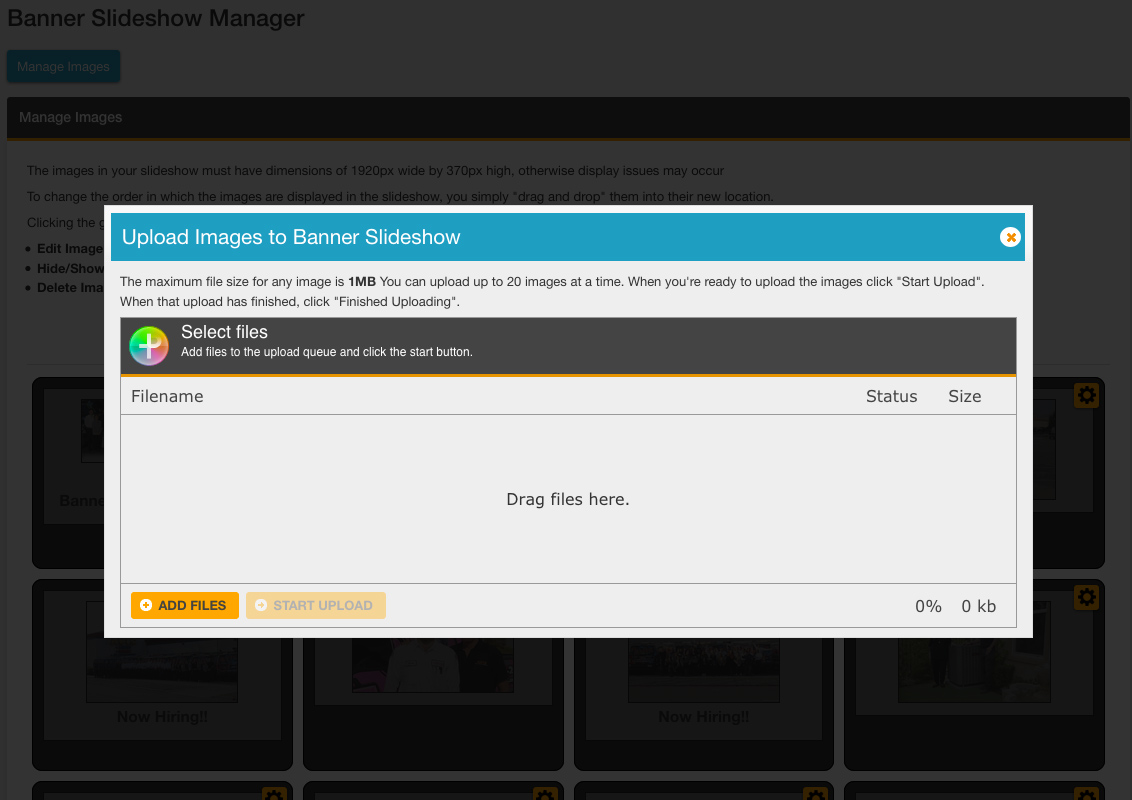
- Once the image has been uploaded, it will be added to the list of images. However, it will be grayed out (which means it is not visible on the website). Before making it visible, we should add any applicable text or links.
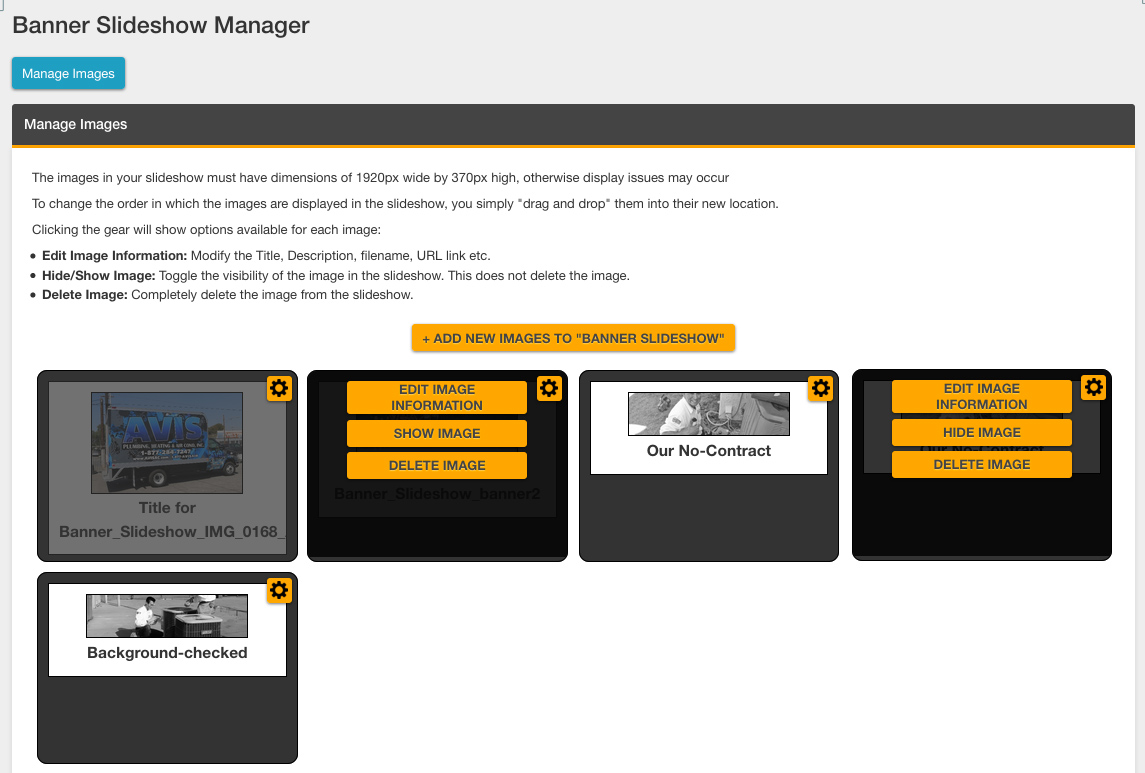
- Click the yellow gear icon in the righthand corner of the image. Select “Edit Image Information” from the menu that appears.
- A window will appear with fields to edit the title, description, image alt tag, and file name. There is also a field to add a link for the image, if applicable. Once you’ve made the necessary edits, select the yellow “Save” button.
- Return to your grayed out image and select the yellow gear icon once more. Select “Show Image” from the menu that appears to make the image visible.
Edit or Delete Banner (Hero) Images
- Select the yellow gear icon on the image to be edited/deleted.
- Select “Edit Image Information” to edit the title, description, alt text, file name, and/or link.
- Select “Delete Image” to delete the image completely from the library.
- Select “Show Image” to make the image visible (this option will only display if the image is not currently visible).
- Select “Hide Image” to make the image hidden (this option will only display if the image is not currently hidden).
- Images can be reordered by clicking on an image and dragging it to the desired location.
Sample Output
The banner module images will display in the hero container on the homepage. The title, description and link may or may not appear on the banner image (depending upon the site design).

Last updated: