TinyMCE Editor
The TinyMCE Editor is a platform independent web-based WYSIWYG (What You See Is What You Get) editor.
This tool is automatically built into the major editable content areas of your website (top/main subpage content and service town page content). It will allow you to add HTML content into your website using a more familiar word-processing interface (i.e., without code).
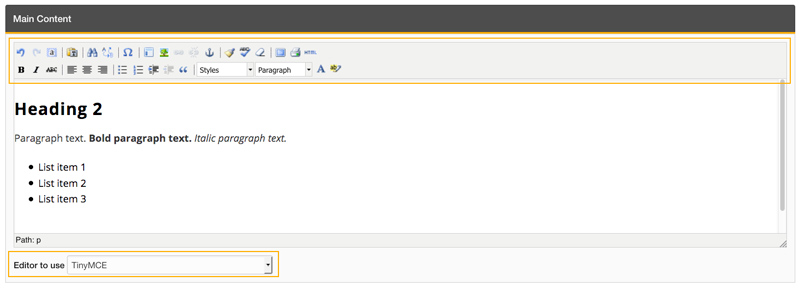
At the bottom of the text box is a resize bar. If you drag the lower right corner you can make the editor window bigger or smaller.
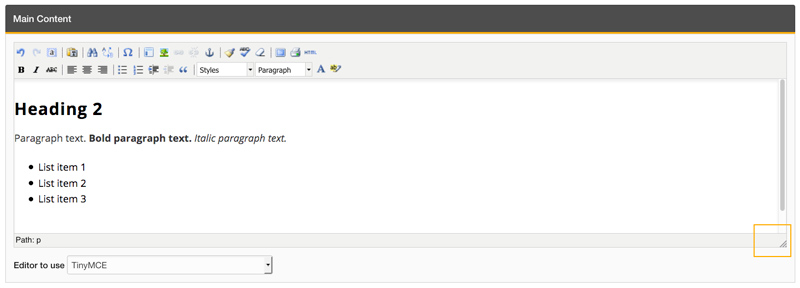
TinyMCE Toolbar Icons
Below is an introduction to features included in the TinyMCE editor. Click the “Read More” link for more details on advanced features.
Icon Name Description More Details 
Undo Undoes the last action 
Redo Redoes the last performed action that was undone. 
Select All Selects all text in content area. 
Paste as Plain Text Inserts the text from the clipboard at the insertion point, and removes all formatting to leave only plain text. Read more 
Find Searches the content box for specified text. 
Find and Replace Find the specified text and replace it with the new text. 
Special Character Opens a dialog box with a list of special character options. 
Insert Predefined Template Inserts a predefined template structure Read more 
Insert Image Opens a dialog box to insert an image. Read more 
Link Inserts a link to selected text/image. Read more 
Unlink Removes the current link 
Anchor Link Inserts an anchor link Read more 
Clean Up Code Removes extraneous html (non-dev users should avoid using this function) 
Spell Check Runs spell check through content area. 
Remove Formatting Removes any formatting to the selected content. 
Full Screen View Toggles Full Screen Mode for Content Box 
Print Prints Page Content 
Edit HTML Opens a dialog box allowing you to edit HTML code (extreme caution should be taken by non-dev users) 
Bold Bold the selected text. 
Italics Italicize the selected text. 
Strikethrough Places a line through selected text. 
Left Align Aligns the selected text to the left. 
Center Align Aligns the selected text in the center. 
Right Align Aligns the selected text to the right. 
Bulleted List Changes selected paragraphs into bulleted list items 
Numbered List Changes selected paragraphs into numbered list items 
Add Left Margin Adds one indent to the current section 
Remove left Margin Removes one indent from the current section 
Blockquote Indents the entire paragraph to block quote style. 
Text Styles Adds predefined styles Read more 
Text Format Changes the text from default (paragraph) to headings. 
Text Color Changes the color of the selected text. 
Text Background Color Changes the background color of the selected text.
Last updated: