Contact Forms
Website contact forms are a place for site visitors to enter and submit data, which can then be collected for use by the client. Contact forms may be used to generate leads, collect feedback, or receive employment applications.
Each form includes a designated form page and a corresponding “thank you” page. Some sites may include mini forms on the subpage and/or homepage.
Once submitted, a form generates two emails: one to the client and one to the form submitter. The form submission will be noted in the forms module.
Forms Included (Default)
By default, the following forms are available with Active Leads and Domination packages. The client may request to disable/modify certain forms and/or add new forms based on the site design.
- Send a Message
- Request an Estimate
- Schedule Service
- Take Our Survey
- Refer A Friend
- Careers
Contact Form Page
Typically, all contact form pages exist under a top-level weblink with the filename “contact”. The client may request a different sitemap setup, but in most cases the URL structure will end up like this:
http://www.clientURL.com/contact/formPageFilename
Actual example:
http://www.avisac.com/contact/send-message
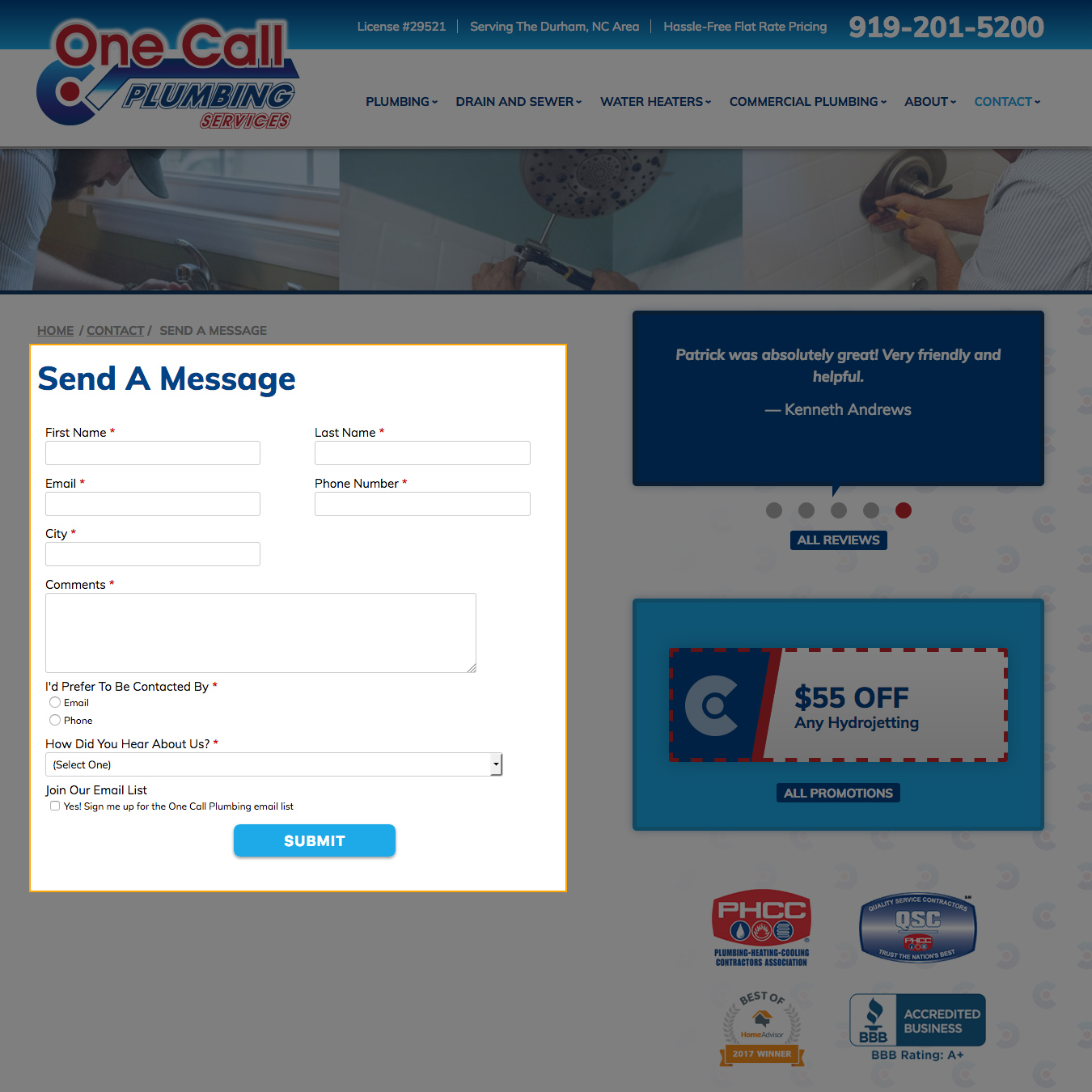
The Contact Form Page includes:
- Heading with the name of the contact form
- Contact form
- May include/exclude sidebar, depending on the site design or client request
- Additional content may be added above or below the form through the content editor
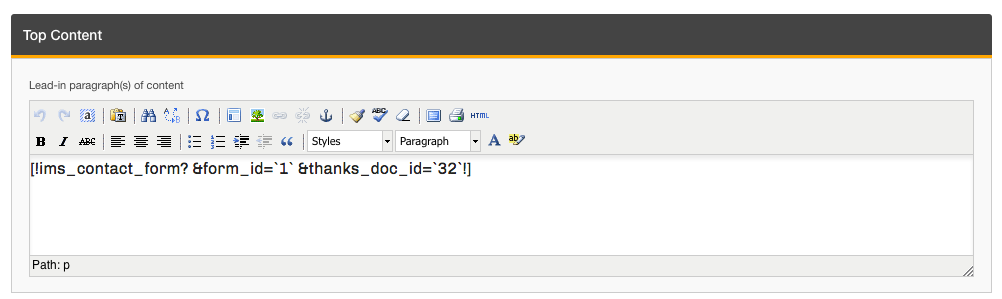
In the resource editor, the form will appear as an iMarket shortcode. iMarketStaff users should take care not to modify this content if/when editing the page.
Styling
At this time, the Contact Form pages do not use custom styling provided by the Design team. However, the Developer may make small tweaks to the default styling to better suit the overall site design at the time of building the site.
Thank You Page
Typically, all thank you pages pages exist under their respective contact form page and with the filename “thanks”. The URL structure will usually look like this:
http://www.clientURL.com/contact/formPageFilename/thanks
Actual example:
http://www.avisac.com/contact/send-message/thanks
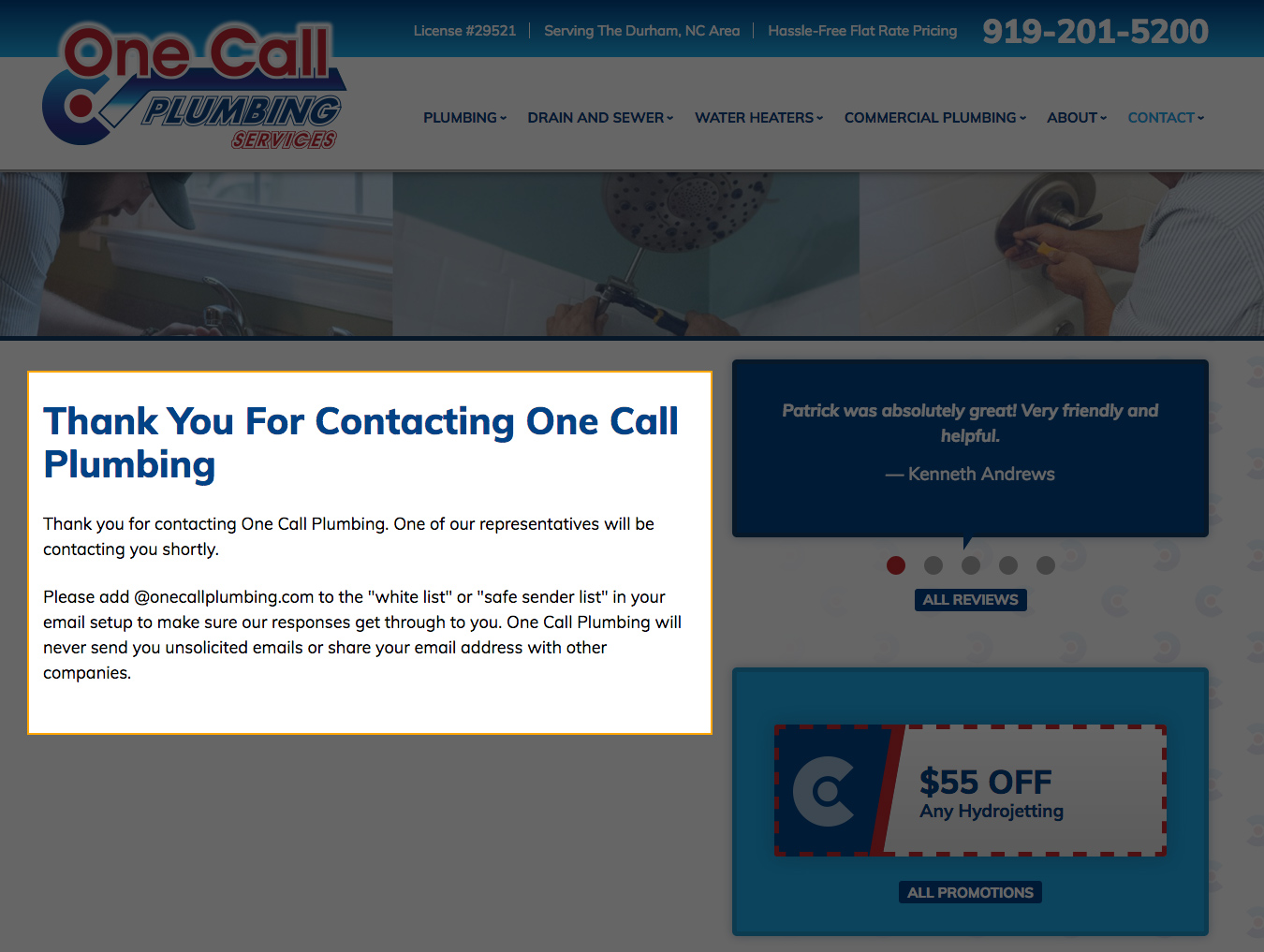
The Contact Form Thank You Page includes:
- Heading with short thank you message
- Full thank you message text with email disclaimer.
- May include/exclude sidebar, depending on the site design or client request
This page has Developer-only permissions, so any changes to the page settings or content will need to be requested by Development through a ticket.
Styling
At this time, the Contact Form Thank You pages do not use custom styling provided by the Design team. However, the Developer may make small tweaks to the default styling to better suit the overall site design at the time of building the site.
Mini Forms
Behavior
Styling
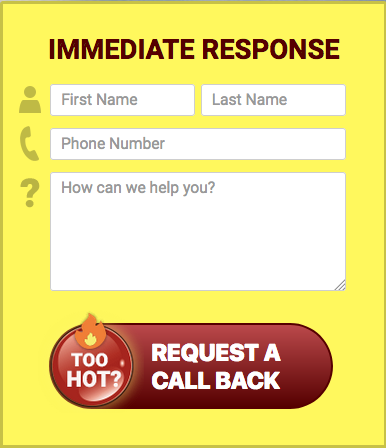
Mini forms will include custom styling provided by the Design Team. Two samples are displayed below.

Modifying Contact Forms and Related Pages
Modifications to a form’s fields and settings is done through the module. Additional content outside of the form itself can be added to the form page by editing the respective page through the CMS editor. By default, siteadmin (client-access) logins do not have access to edit these pages, but the iMarketStaff login does. Changes to the content on the corresponding thank you pages must be made by Development.
Lead Attribution
iMarket tracks the source/medium for all form submissions using the iMS Analytics tool. When a form is submitted, it’s added to the Leads Manager tab in the contact forms module along with the source/medium of the visit. This information is also sent to the client’s project in the Dashboard through the Dashboard API. (Note that this data is used in combination with data from Google Analytics to generate a more accurate figure.)
You can learn more about using this feature by visiting the Contact Forms Module entry.
Last updated: